Place text in quotation marks for exact match search results.
About MDT Server
MDT Server is a server application that facilitates sending and receiving of manifest
events, configuration, and text message data between Trapeze and the mobile computer vendor
gateway.
The MDT Server application should be set up in your file server in the Trapeze4 directory or
a BINMDT directory as advised by your Trapeze representative.
After starting the program, you must configure the interface with the specific information
required by your mobile computer vendor. Please contact your Trapeze representative for more
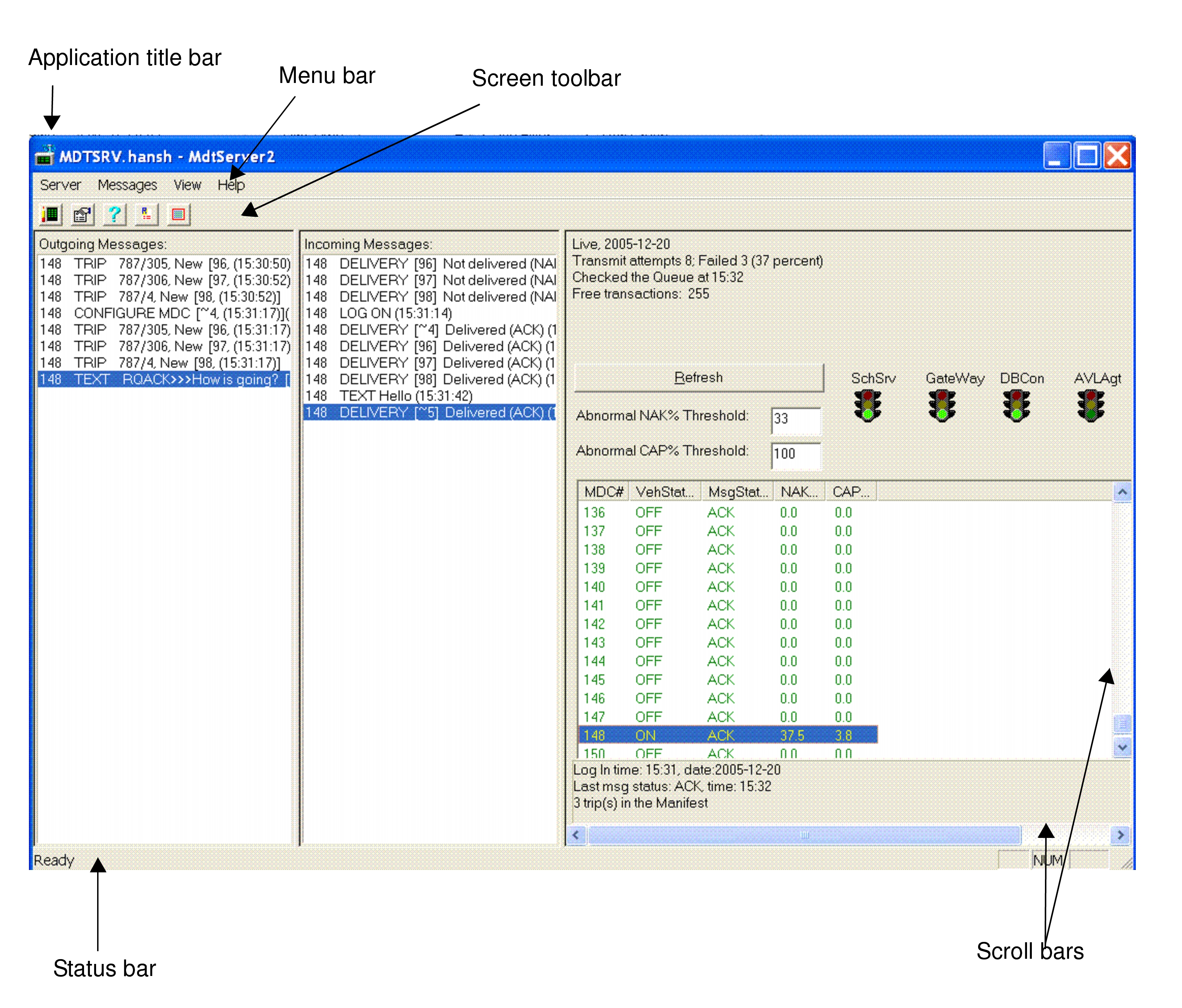
information.Figure 1. MDT Server—Basic Components
Description of MDT Server Components
Application title bar
Shows the names of the application and the screen currently in use. It also shows the
Minimize, Maximize, and
Close buttons on the right corner of the bar.
Menu bar
Contains the Server, Messages,
View, and Help menu lists.
The content
of the Menu bar cannot be altered.
Screen toolbar
Shows buttons for actions applicable to the active screen.
Status bar
Indicates the readiness of a screen.
Scroll bars
Allow users to navigate records that are not immediately visible on the screens.
Message frames
Incoming Messages (middle frame): Shows the events that are sent by a mobile
computer to the MDT Server such as arrives, performs, and other incoming
messages.
Outgoing Messages (left frame): Displays all events that the MDT Server is
attempting to send to the mobile computer.
Status frame (right-most frame)
The top section of the frame shows the current date of operation, transmission status,
transmission failure rate, time when the queue of messages was last checked, and number
of transactions in the transaction pool.
Bottom frame
Shows the details of the highlighted row in the Status frame grid.
Status Frame Features
Abnormal NAK% Threshold
Sets a limit to the percentage of messages that are not acknowledged (NAK). If the
NAK% of a mobile computer is higher than this value, the row showing the mobile
computer’s information turns red. The default value is 33.
Abnormal CAP% Threshold
Sets the limit to the percentage of the capacity (CAP). If the CAP% of a mobile
computer is higher than this value, the row showing the mobile computer information
turns red. The default value is 100.
Refresh
Updates the information shown on the screen.
Columns in the Status Frame
MDC #
Shows the ID of the mobile computer on the vehicles.
VehStatus (Vehicle Status)
Indicates if the vehicle is logged on, off, late, early or in an emergency.
MsgStatus (Message Status)
Shows whether the message has been acknowledged (ACK) or NAK.
NAK%
Shows the percentage of messages that were NAK.
CAP%
Shows the percentage of trips displayed on the manifest (itinerary).
Commands on the Screen Toolbar
Table 1. Description of MDT Server Commands
Command
Button
Description
Update MDT Status
Displays the Update MDT Status dialog box.
Server Properties
Displays the MDT Server properties in the Properties
dialog box. See Setting MDT Server Properties for more information.
About (MDT Server:)
Shows the version of the MDT Server in use.
Renew All Login MDT:
The MDT Server sends all vehicles a login configuration message to renew the
vehicle login.