
Viewing PASS Real Time Views
After logging in, you can view data from the current service day in each real time view.
About this task
Procedure
- Click Tasks.
-
Under Real Time Views, click one of the following view options:
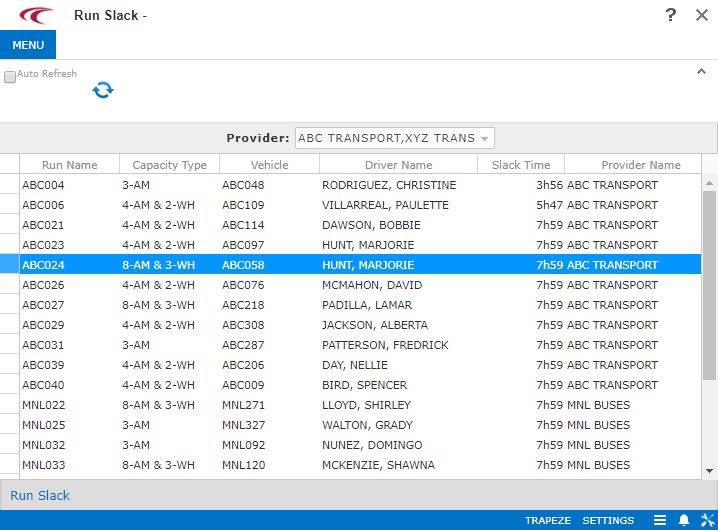
Option Description Unperformed Events Scheduled events that have not been performed. On-Board Time Client trips with significant on-board time. Late Pull-ins Late pull-ins. Late Pull-outs Late pull-outs. Late Trips Late trips. Transfers Transfer trips. Appointment Time Drop-offs that are scheduled late for their appointment times. Run Slack Run slack time for each run. -
In the Providers list, select the check box for each
provider for which you want to view data.
You can only view data for providers for which you have been granted permission in PASS.
-
Select your refresh settings:
To... Do this... Manually refresh view data
Clear the Auto Refresh check box and click the Refresh button: 
Automatically refresh view data Select the Auto Refresh check box. Note: System context properties specify how frequently data is refreshed when the Auto Refresh check box is selected, and whether the system shows a different view each time the data is auto-refreshed.