
About Understanding ParaCutter Screens
ParaCutter screens are similar in content elements and layout.
The following graphic of Manage Runcutter Jobs illustrates the common elements found in each screen:
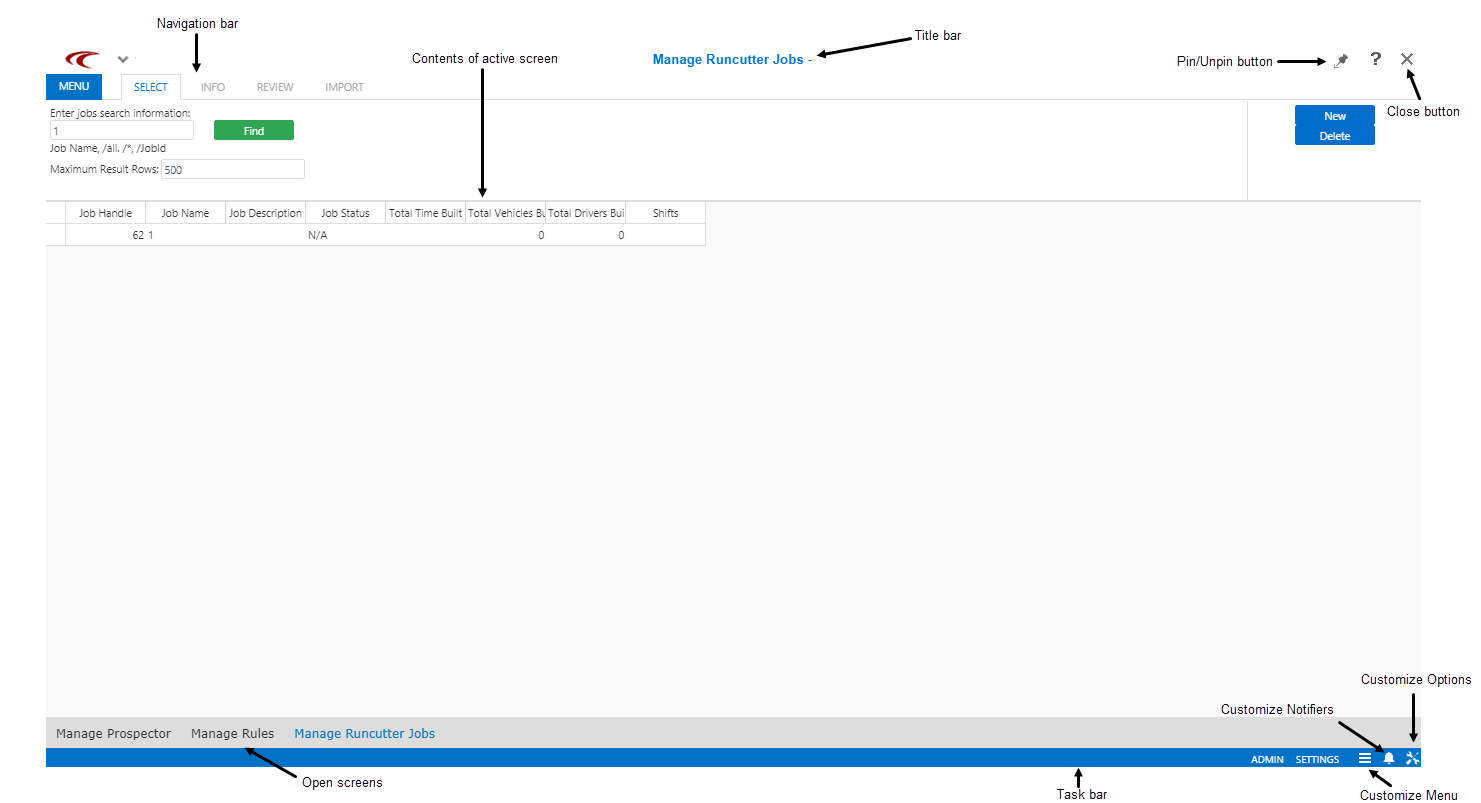
- Title bar
- Located at the top of the screen, the title bar shows the name of the active screen
and provides information about the current task.
For example, in the graphic the user name is shown together with the date and time of the session.
It also shows the Pin/Unpin and Close buttons.
- Pin/Unpin
This button is at the top right of the open screen.
By default, the screens are automatically pinned when they are opened.Pinned screens means that you can open additional instances of the same screen without losing the data in screens that are already open.
Unpinned screens mean that if you open another instance of the same screen, the current screen closes and any unsaved data is lost.
- Close
- This button is at the top right corner of the open screen.
Click this button to close the screen without closing other open screens.
- Navigation bar
- The top left of the screen shows a series of buttons that provides an easy and orderly
way to access the features that allow you to complete the task.
Each button is referred to as a step. To view specific information about the screen or a specific record, click the appropriate button in the Navigation bar. It presents steps in a logical workflow, but you can move among the steps in the order that you want. For example, the buttons in the Navigation bar of Manage Runcutter Jobs allow you to select jobs, review, and import runs.
- Customize Menu
- This button is shown at the bottom right of the screen.
Click this button to customize screens for performing the tasks in the main menu workspace.
- Task bar
- The task bar at the bottom of the screen shows the titles of the screens that are
currently open.
The title of the screen that is currently active appears highlighted and shown with a border.
To view another open screen, click its title on the task bar.
- Customize Options
- This button is at the bottom right of the screen.