
Opening Trip Broker and Selecting a Trip Date
In Trip Broker, trips are arranged by trip date.
Before you begin
About this task
After trips have been loaded, a calendar date must be selected in Trip Broker.
Procedure
-
After logging on, click .
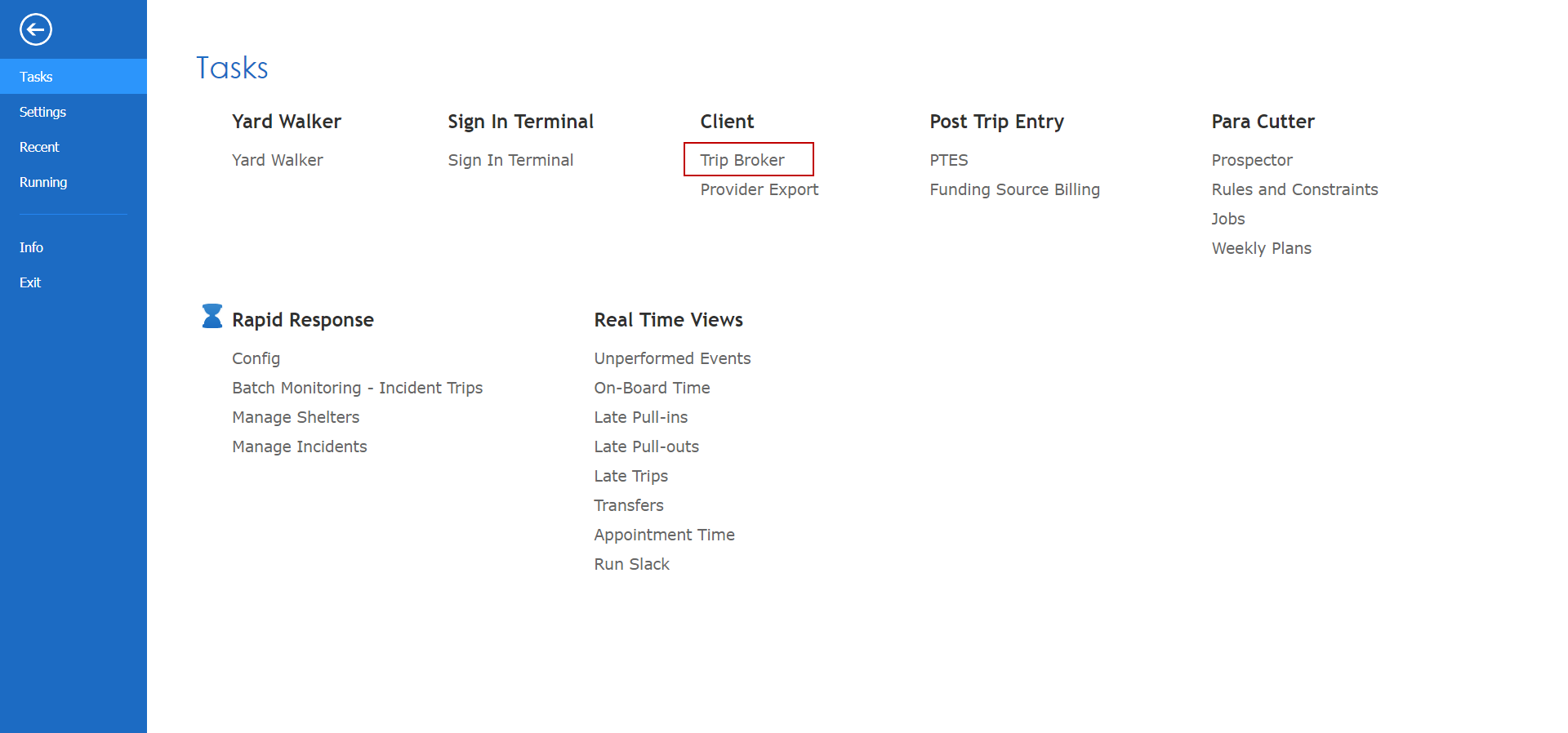
Depending on your system setup, Trip Broker may be found in another location. If you cannot locate Trip Broker, contact your system administrator.The Trip Broker calendar appears.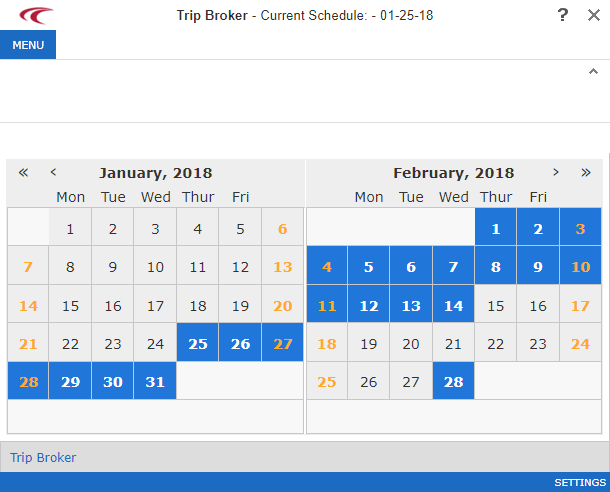
-
Double-click the day for which to view unscheduled trips.
The main Trip Broker screen appears.
- Optional:
To select a different date, click the Select Schedule button on
the right side of the screen:
