
Adding Run Type Garages
Run Type Garages are defined to ensure the validity of runs. It prevents BlockBuster Web from assigning runs to a garage it is not permitted although it may be cost effective.
-
In the Ancillary list, click Run Type
Garages.
The Run Type Garages screen opens.
-
On the screen toolbar, click the Add New button:
 A new row appears with blank fields on the top row of the grid.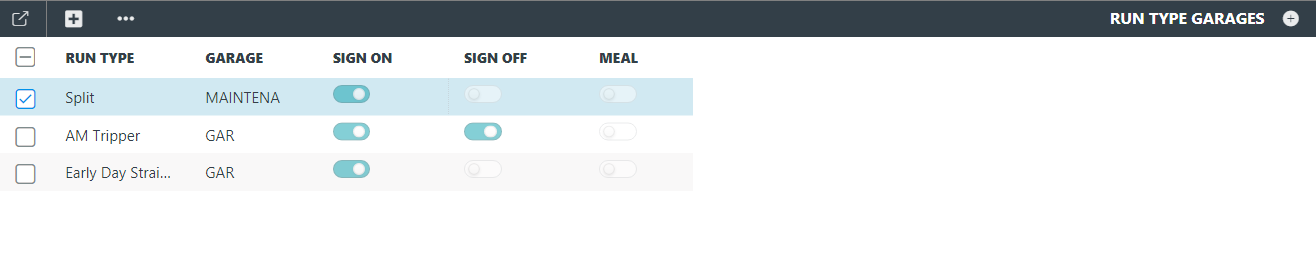
- In the Run Type drop-down list, select the run type you want to apply.
- In the Garage drop-down list, click the garage to which the selected run type will be applied. Only the garages associated with the division in the current context are shown in the list.
-
Depending on how the garage is to be used in relation to the selected run type,
select the appropriate toggle button:
- Sign On - Identifies the garage where drivers can sign on for work.
- Sign Off - Identifies the garage where drivers can sign off work.
- Meal - Identifies a location where drivers can have a shift or meal break between two pieces of work. (This is not necessarily a physical garage.)
-
Click Save.
A message asks if you want to save or discard your changes.
If you do not wish to save the record, click Discard.
To save the record, click Save.
The new rule is added to the Run Type Garages grid.