
Adding Run Types
The run types are defined in the Run Types screen in BlockBuster Web.
All run types must be defined as either legal or illegal.
The general run types are:
- Legal - Adhere to the union agreements and your transit site policies. (This may also be called Desirable or Restricted.)
-
Illegal - Do not adhere to the union agreements and your transit
site policies. For each legal run type you create, you should have a corresponding illegal
run type. (This may also be called Undesirable or Unrestricted.) Illegal run types do not
have "hard rules" defined, for example, Minimum and Maximum Sign On Time.
They are used to help the algorithm determine how much a run would cost if it were legal and to help drive the result towards legal runs. For example, you want illegal runs to pay overtime after 8 hours so the algorithm will work to make long illegal runs shorter.
-
On the Ancillary list, click Run
Types.
The Run Types screen appears.
-
On the screen toolbar, click the Add New button:
 A new row appears with blank fields on the top row of the grid.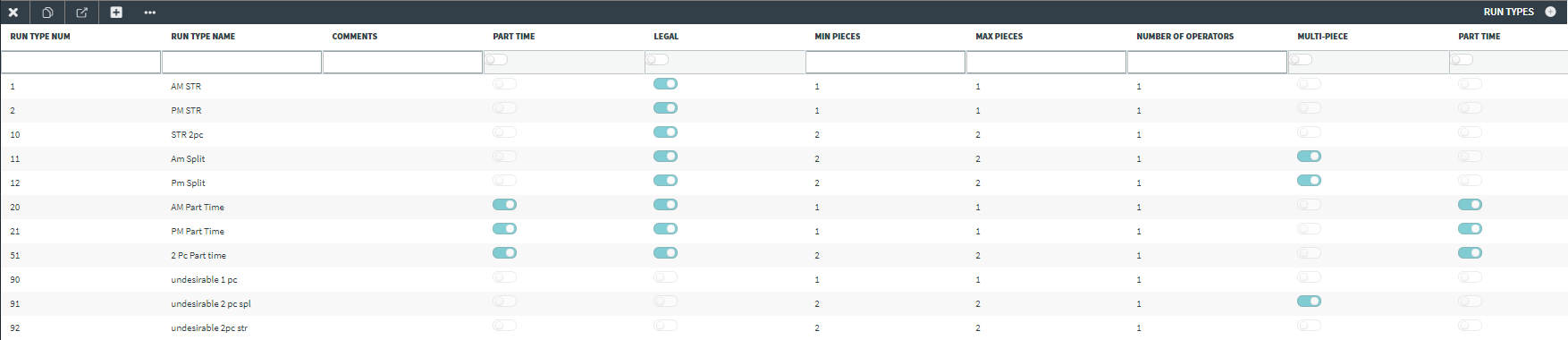
-
In the Run Type Num field, type a number for the new run
type.
Run Type Num values are used to sort run types in the Costing Summary screen and can be used as abbreviations or for sorting in custom reports.
- In the In the Run Type Name field, type the name of the new run type.
- Optional: In the Comments field, type referential information about the run type, for example, "Used on Holidays only."
-
To create a specific type of run, select any of the following toggles:
- Part-time : If turned on, the run type applies to work considered for part-time workers. (Make sure that you have added a part-time run type category.)
- Legal : If turned on, the run type has minimum and maximum parameters.
- Required:
In the MinPieces and MaxPieces fields,
type the minimum and maximum number of pieces for the run type.
Note: The data in these columns become hard rules used to categorize runs.
- Required: For the ancillary data to be copied into Trapeze OPS, type the number of operators who are going be assigned to this run type in the Number of Operators field. If you leave it at 0, the system interprets it as one operator. (The value in this field is also applied in Trapeze OPS.)
-
Click Save .
A message asks if you want to save or discard your changes.
If you do not wish to save the record, click Discard.
To save the record, click Save.
The new run type is added to the Run Types grid.