
Adjusting Columns
The appearance of the columns in the various grids can be adjusted in terms of size, content, and sort order.
- To adjust the size of a column, hover your pointer on the right of the column name until you see the separator with two arrows one each side. Drag the separator until the width of the column is the size you want.
-
To filter the contents of a column, hover your pointer on the right of the
column name until you see the triple bar icon.
-
Click the icon. A dialog with filters appears:
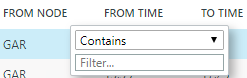 The filters are:
- Contains
- Not contains
- Equals
- Not equal
- Starts with
- Ends with
The contents of the selected columns change accordingly. If there are no changes applied, it means that the filters did not find any applicable data. -
Click the icon. A dialog with filters appears:
-
To sort the data in a column, click the column name. An arrow is shown on the
left of the triple bar icon.
- An upward arrow indicates that the data is sorted in ascending (lowest to highest) order.
- A downward arrow indicates that the data is sorted in descending order (highest to lowest) order.