
Adding Deadhead Traces

You can add deadhead traces on Google Maps.

  1. Click Task > Blocking or on the main toolbar, click the Blocking button: Blocking button
  2. On the main toolbar, click the System Map button: System Map button

    The map window opens on the right section of the screen. The system map appears by default.

  3. Click the Google Map button:Google Map button

    The Google Map replaces the system map in the map window.

  4. Click the Edit button: Edit button

    The Edit dialog box appears.

  5. Click the Deadheads tab, and then select the deadhead you want.
  6. Click the Plot tab.
    The selected deadhead appears on the top left section of the tab.
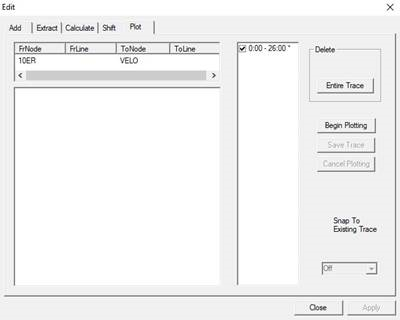
    Plot tab in Edit dialog box
  7. Click Begin Plotting.
    When you open the map and select a deadhead on the Deadhead tab, the origin and destination of the deadhead can be seen on the map.
  8. On the Google Map, click the point with which you want to start the trace.
  9. Continue to click the points you want to add to the trace.
  10. Optional: To delete a trace that you want to redo, click Delete Trace.

    A message asks you to confirm the delete action. Click Yes.

  11. After completing the trace, click Save Trace.
    The following graphic is an example of a deadhead trace:
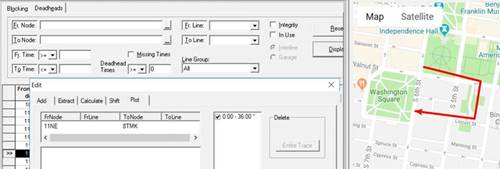
    Deadhead Trace example
  12. Click Close.