Using the Line Trace Option
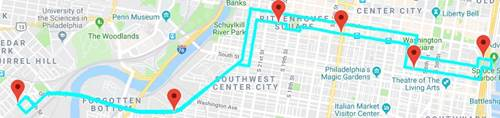
You can add the pattern trace on the Google Map using the Line Trace option.
-
Click or on the main toolbar, click the Route Definition
button:

-
On the main toolbar, click the System Map
button:
 The map window appears on the right section of the screen. The system map is shown by default.
 -
Click the Google Map button:

-
On the screen toolbar, click the Edit button:

The Edit dialog box appears.
-
To center the pattern on the map, click the
Center button: