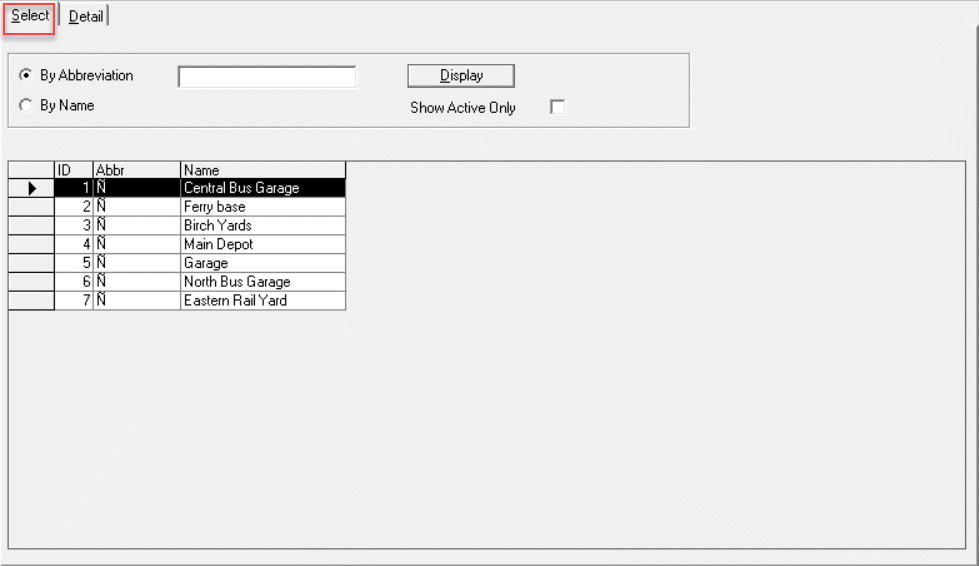
Create garage records in FX in the Garages screen.
-
On the main toolbar, click Garages:

Alternatively, click .
The Garages screen appears.
-
Click the Add New button:

The
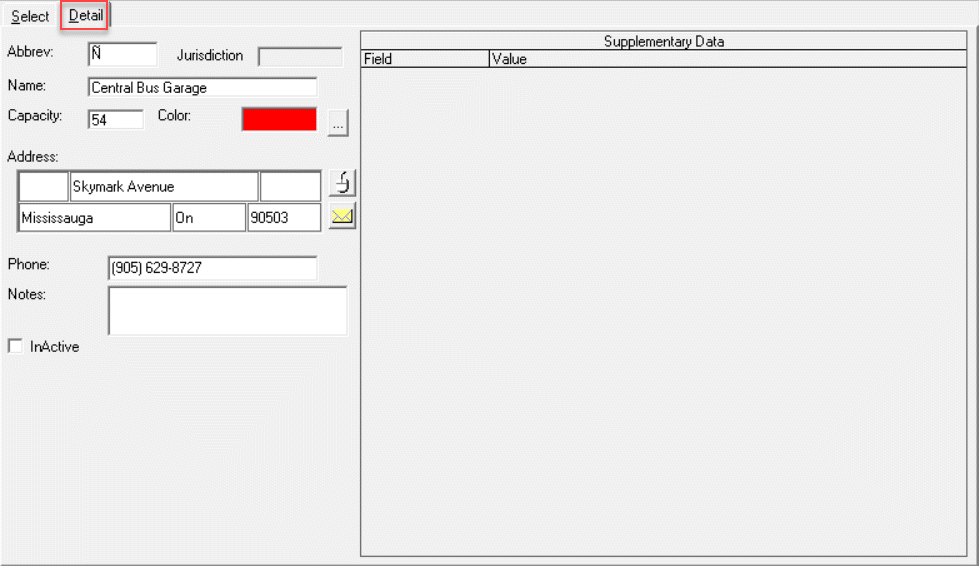
Detail tab opens.
-
In the Abbrev field, type an abbreviation for the garage.
The abbreviation must be unique, that is, you can not use an existing one.
-
In the Name field, type the name of the garage.
-
In the Capacity field, type the vehicle capacity of the garage.
-
From the Color field, click the ellipsis
button.
The Color selection dialog box appears.
-
Choose a color that will help you identify this specific garage when you are viewing garages on the map.
-
In the Address box, type the location of the garage.
-
Geocode the address.
-
In the Phone field, type a phone number.
- Optional:
In the Notes field, type any comments you have about the
garage.
-
(If Applicable) In the Supplementary Data fields, add the
appropriate information you want to include about the garage.
-
Click the Save button:

-
To view the list of all garages, open the Select tab.