Place text in quotation marks for exact match search results.
Viewing Comments
Use the Comments ancillary data to view, and edit all existing comments at once. Comments are not created here but in other task screens.
You can view comments using one or more criteria.
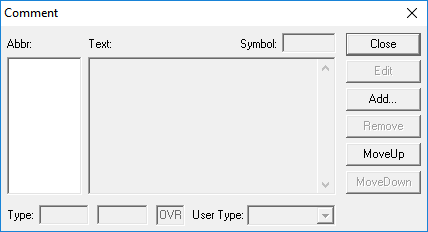
Click File > Ancillary Data > General > Comments.
The Comment dialog box appears.
In the Abbr field, type an abbreviation.
In the Text field, type the text you want to see.
From the Type list, select the appropriate option:
<All>, Global,
Line or SGrp. If you select Line or Sgrp,
a corresponding field appears below the Type field. Select the line
or service group you want.
From the User Types list, select the user type you want.
Optional: To view comments which are in use (Used) or were used
historically, or were not at all used (Not Used), select the Used
and Not Used check boxes accordingly.
A comment is used when it is assigned to a line or block in specific task screens,
Comments dialog boxes. via the Assign
command. It is possible to create and save comments. and then not assign them thus
producing a comment that is not used.
Click Display. If you do not click Display, then no comments are displayed.
The total number of comments are shown in the
#Comments field. To go to the set of comments that are at the bottom of
the grid, click Last. The marker moves to the last comment.