
Copying Data
You can copy lines, trips, blocks, and runs from the same or a different sign-up period.
FX Copy can only run one process at a time. You can,
however, schedule several copy requests that will run at different dates and
times.
- Click .
-
In the Select Sign-ups view, select the source and destination
sign-up periods to be used for the copy in the From and
To lists, respectively, and click
Next.
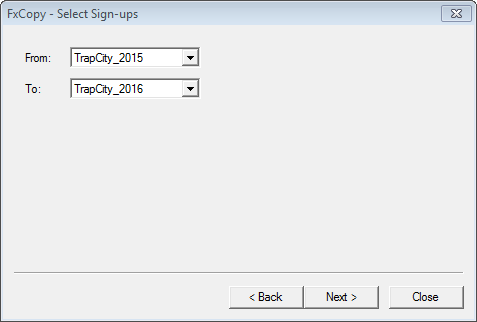
If in a multi-agency environment, the To list contains all the sign-up periods.
-
In the Select Context view, select the data you want to copy. Click one of the following options:
- Lines
- Trips
- Blocks
- Runs
- Rosters
- All
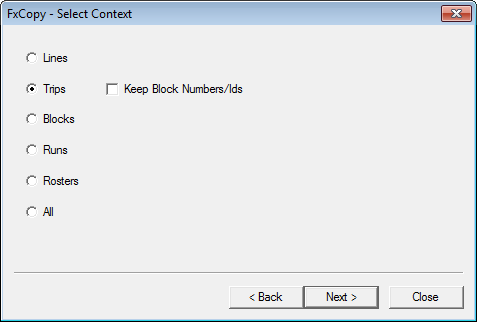 Attention: When copying data from one agency to another, the options: Blocks, Runs, Rosters, and All will appear shaded in the FxCopy - SelectContext window, that is, only the Lines and Trips options are activated.See the following sections on how to proceed. The tasks depend on which option in step 3 you choose.Note: If, at any time, you need to go back and correct a selection, click Back.If not all data has been copied after running FX Copy, a message provides information on the errors that may have been encountered.