
Viewing Comments
Use the Comments ancillary data to view, and edit all existing comments at once. Comments are not created here but in other task screens.
-
Click .
The Comment dialog appears.
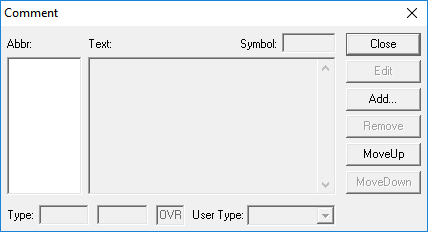
- In the Abbr field, type an abbreviation.
- In the Text field, type the text you want to see.
- From the Type list, select the appropriate option: <All>, Global, Line or SGrp. If you select Line or Sgrp, a corresponding field appears below the Type field. Select the line or service group you want.
- From the User Types list, select the user type you want.
- Optional:
To view comments which are in use (Used) or were used
historically, or were not at all used (Not Used), select the Used
and Not Used checkboxes accordingly.
A comment is used when it is assigned to a line or block in specific task screens, Comments dialoges. via the Assign command. It is possible to create and save comments. and then not assign them thus producing a comment that is not used.
- Click Display. If you do not click Display, then no comments are displayed.