
Applying Comments to Patterns
In the Route Definition screen, comments can be added to patterns on the Patterns tab directly in the Comments column of the Patterns grid, or Using the Turn List feature.
- Select the Patterns tab of the Route Definition screen.
- Click . The Comments column is added to the Patterns grid.
- Click the Comment field of the pattern to which you want to apply comments.
-
Click Add.
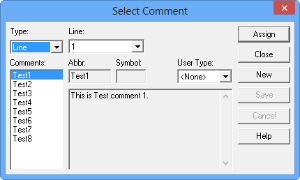
The Select Comment dialog appears.
-
From the Type list, select the Line in the current context to
which you want to apply the comment.
In the Line field, the line of the selected pattern appears by default.
- From the User Type list, choose the appropriate user type.
- From the Comments list, select the comment you want. For example, as shown in the following graphic, the abbreviation Test1 is highlighted in the Comments frame of the Select Comment dialog. The full text of the comment appears in the middle frame, This is Test comment 1.
- Click Assign. The selected comment is shown in the Comment field of the selected pattern in the Patterns grid.
- To arrange multiple comments assigned to a pattern in a desired sequence in a report, click the Move Up or Move Down buttons in the Comment dialog as necessary.
- Click Close.