
Viewing Exceptions in the Calendar

You can view the exceptions applied to a date in the calendar.
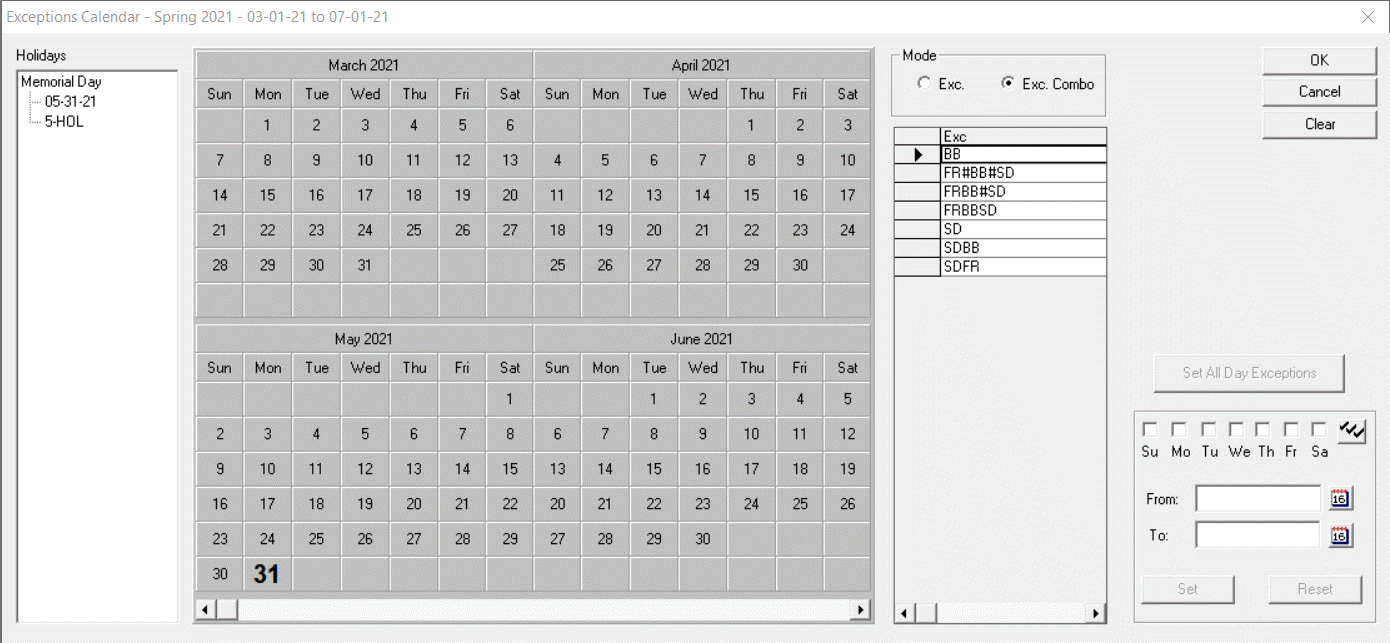
On the Exception Combinations tab, click the Calendar button to open the Exceptions Calendar dialog.
Exception Combinations calendar dialog
  1. To view the exceptions applied to a date in the calendar, right-click the date.
    A dialog appears with the list of exceptions. The title bar shows the Exception Combination abbreviation (Abbr) applied to the selected date, if any.
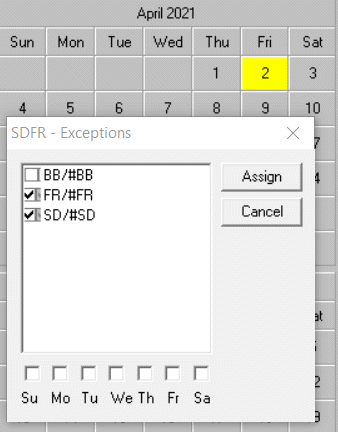
    M-Th B - Exceptions dialog
  2. Optional: To add other exception combinations using the dialog:
    1. Click Assign.
      The Add dialog appears.
    2. Follow the steps in Adding Exception Combinations with the Add dialog.

      The system automatically updates the exception combos when you make changes to the exception calendar.

      If some exception combos are to be deleted during the update, a message appears asking if you want to proceed with the delete action.