
Setting the Mode (Context)
The Set Mode feature enables you to load the information for the agency, line, division, service, sign-up period, and exception combination for which you are performing FX tasks. This is also referred to as setting the context.
Note: Set up the active sign-up period before proceeding with the rest of your data input.
Setting the mode or context is done before each important task such as Route Definition, Trip Building, Blocking, Runcutting, and Rostering.
Note: The mandatory fields are shown in bold text. These fields vary slightly among the
main FX and Trapeze PLAN screens.
-
Click or press F3. The Set Mode dialog box appears.
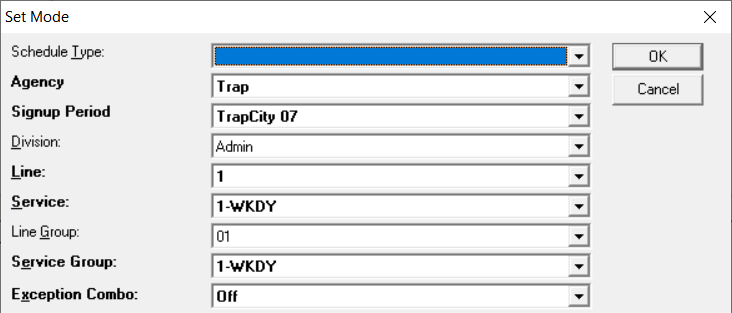
The example shown is the Set Mode dialog box with the Trip Building screen open.
- Select the appropriate values for each field. You must set values for all the mandatory fields. (In the sample graphic, these fields are the Agency, Signup Period, Line, Service, Service Group, and Exception Combo fields.) By default, if you select a line, the matching line group is also selected. The same applies for services, for example, if you select Saturday in the Service field, the same option appears in the Service Group field. However, if you select a line group or a service group, the line or service does not change.
-
(If applicable) From the Agency list, select the appropriate
agency.
(This applies in a multi-agency environment. The Agency field is a mandatory field.)
Note: When setting the context in the Route Definition screen, for example, you must select an agency to avoid adding nodes that already exist in another agency. This can happen if you add a new node with the same abbreviation as an already existing node. - From the Signup Period list, select the sign-up period you want.
- Click OK.