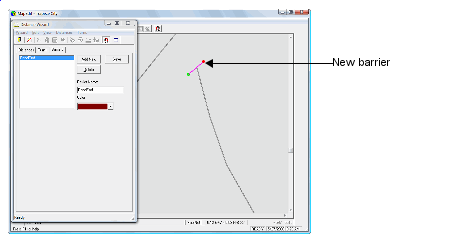
Add or change barriers using the Barriers tab in the Distance Wizard.
-
Click , or click the Distance Wizard button:
The Distance Wizard dialog box appears.
-
Click the Barriers tab.
-
Do one of the following steps:
- To create a new barrier, type a name in the Barrier Name
field, and then click Add New.
- To change an existing barrier, click the name in the barrier list.
-
Press SHIFT and click the barrier starting point on the map,
click any intervening points on the barrier, and click the barrier end location.
-
In the Color field, choose a color for the barrier from the
list.
-
Click Save.
-
If a confirmation dialog box appears, click OK.
You can choose to close and restart MapEdit after this
procedure.