
Finding Street Addresses on the Map
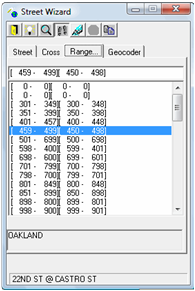
The Range tab in the Street Wizard allows you to select the range of numbers which contains the number of the street address you want to view on the map.
-
Click (or press F7) or click the Street
Wizard button:

The Street Wizard dialog box appears.
-
Click the Range tab, which shows all defined street number
ranges for the selected street.
The following graphic shows the different ranges of street numbers on the Range tab:
-
To view an address range location on the map, do one or more of the following
steps:
- To zoom in on the address range on the map, click the Zoom
button:

- To highlight the address range on the map, click the Highlight
Street or Point button:

- To zoom in on or highlight address ranges one after the other, click the
Follow Current Selection (Zoom or
Hilite):

- To specify whether to follow the selected street by zooming in on or by
highlighting the street on the map, click the Zoom or
Highlight Street or Point buttons:
- To zoom in on the address range on the map, click the Zoom
button: