
Creating Basic Queries

You can create basic queries to find transit solutions.

To illustrate how to create a basic query, refer to the following scenario:
INFO-Web is a Trapeze application that allows passengers to access fixed route information through your website. For example, you want to look at data generated by INFO-Web to examine how many of the requested trips were unsuccessful. That is, you want to know if there were requests where a transit solution was not found based on the criteria that the INFO-Web user entered. You could use the information to find out if passengers want to go to areas that are underserviced or not yet serviced.
Note: Trapeze supplies a sample set of point location queries in the form of text files for you to use and modify.
  1. In the Spatial Analysis screen, do one of the following steps:
    • Click Analysis > Point Location Query.
    • Click the Point Location Query button: Point Location Query button
    The Point Location Query dialog box appears.
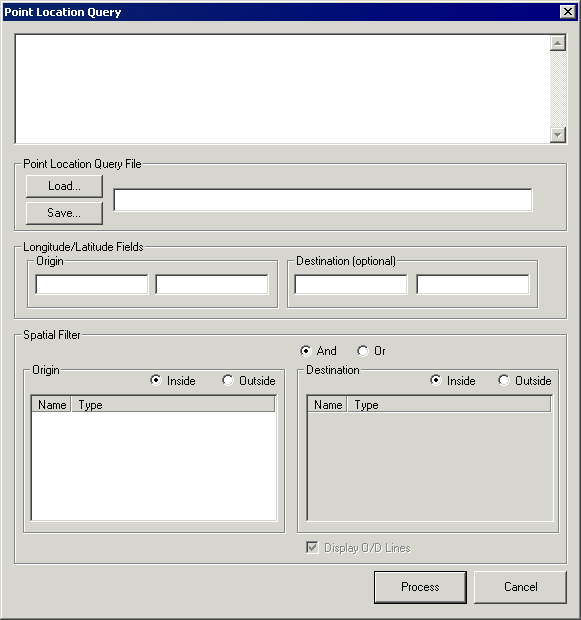
    Point Location Query dialog box
  2. In the text box at the top of the dialog box, type a SQL statement. For example, type the following statement:
    SELECT "CtmRequests"."Success"
    FROM "CtmRequests"
    WHERE "CtmRequests"."Success"=0
    Note: Lines do not wrap at the end of the text box, so the full statement might not be completely visible.
  3. In the Longitude/Latitude Fields frame, type the field names where the Origin longitude and latitude data is stored.
    Note: For both the origin and destination, you must type the exact name of the fields where the longitude and latitude data is stored.
  4. In the Spatial Filter frame, select the check box next to the names of the points.
    Geographic areas that you defined appear in the Spatial Filter frame. If you have multiple geographic areas in the Origin frame, you can include all of them or some of them. The more check boxes you select, the larger your results. Spatial Filter frame from the Point Location Query dialog box
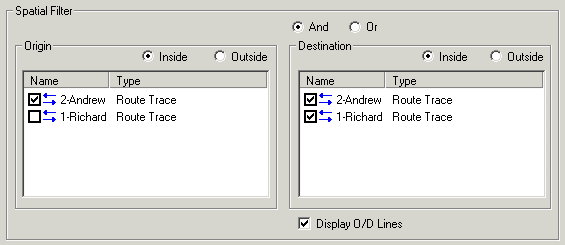
  5. In the Origin frame, select one of the following options:
    • Inside: For trips that started within the geographic area.
    • Outside: For trips that are somewhere other than within the geographic area.
    Note: If you do not specify a geographic area, then all of the records in the dataset are returned in the results.
  6. Select one of the following options:
    • And: Limits your results to the records that match both the Origin criterion and the Destination criterion.
    • Or: Yields more results because it includes records that match the Origin criterion or the Destination criterion.
  7. In the Destination frame, select the Inside or Outside option. See step 5 for the definition of these options.
    Note: The Destination frame is not available if the destination longitude and latitude are not filled in.
  8. Select the check boxes of all of the geographic areas you want to include in the Destination criterion. You do not have to select the same ones that you selected in the Origin frame.
  9. Click the Process button: Process button
    The summary results from the query appear on the Summary tab in the Spatial Analysis screen.
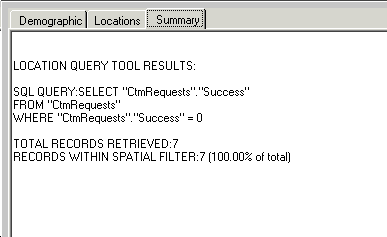
    Summary tab
    In step 2, the sample query requested that all of the instances of failed requests be shown. The data is shown in the Success field of the CtmRequest table on the Locations tab.
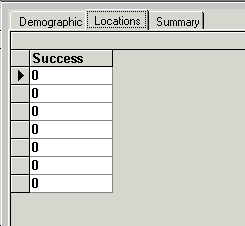
    Locations tab
  10. To save a query, click Save in the Point Location Query File frame.
    The query is saved as a text file.