Customizing the Appearance of the Launchpad and Toolbars
You can choose to customize how your toolbars and the button labels appear.
-
Perform one of the following steps:
- Click .
- Place your cursor on any toolbar and right-click, and then select Customize.
The Customize Control Bars dialog appears.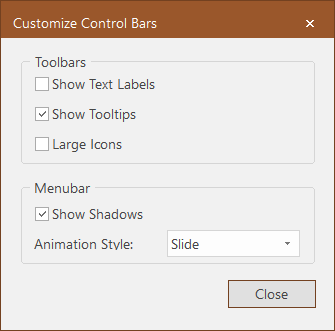
-
Select the options you want to apply to the Launchpad and toolbars:
-
Show Text Labels - If selected, the labels of the buttons are shown on the toolbar.
-
Show Tooltips - If selected, the name of the button is shown when you hover your pointer over the button.
-
Large Icons - If selected, the buttons are shown in a larger size.
-
Show Shadows - If selected, the Launchpad shows shadows for the icons.
-
Animation Style - The options in the dropdown list specify the type of animation that is applied when you click between the
different options in the Launchpad: None, Unfold, Slide, Fade, and (Default).
-
- Click Close.