
Making Phone Calls
Once DriverMate - VoIP is configured, a Phone icon appears on the upper right corner of the Login screen.
About this task
 , it indicates that DriverMate is registered with the VoIP server and is ready
to make phone calls.
, it indicates that DriverMate is registered with the VoIP server and is ready
to make phone calls.If the icon appears gray  , it means that DriverMate was not able to register with the VoiP server.
In this case,
check your VoIP settings. for errors.
, it means that DriverMate was not able to register with the VoiP server.
In this case,
check your VoIP settings. for errors.
Procedure
-
To make a phone call before logging into DriverMate:
-
Tap the phone icon:
-
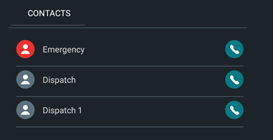
In the Contacts screen, tap the phone icon
beside the name of the contact you want to call. The following image
shows a sample list:
-
Tap the phone icon:
-
To make a phone call after you have logged into DriverMate:
-
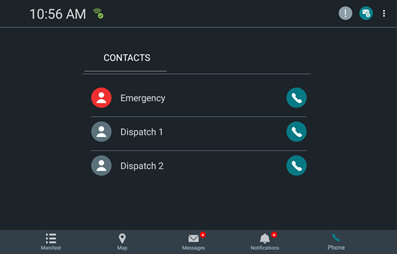
In the Contacts screen, tap the phone icon
beside the name of the contact you want to call. The following image
shows the whole screen:
-
In the Contacts screen, tap the phone icon
beside the name of the contact you want to call. The following image
shows the whole screen: