Auto Configuring DriverMate
Select a Configuration option to control how you want to set the DriverMate properties.
Procedure
-
Open DriverMate.
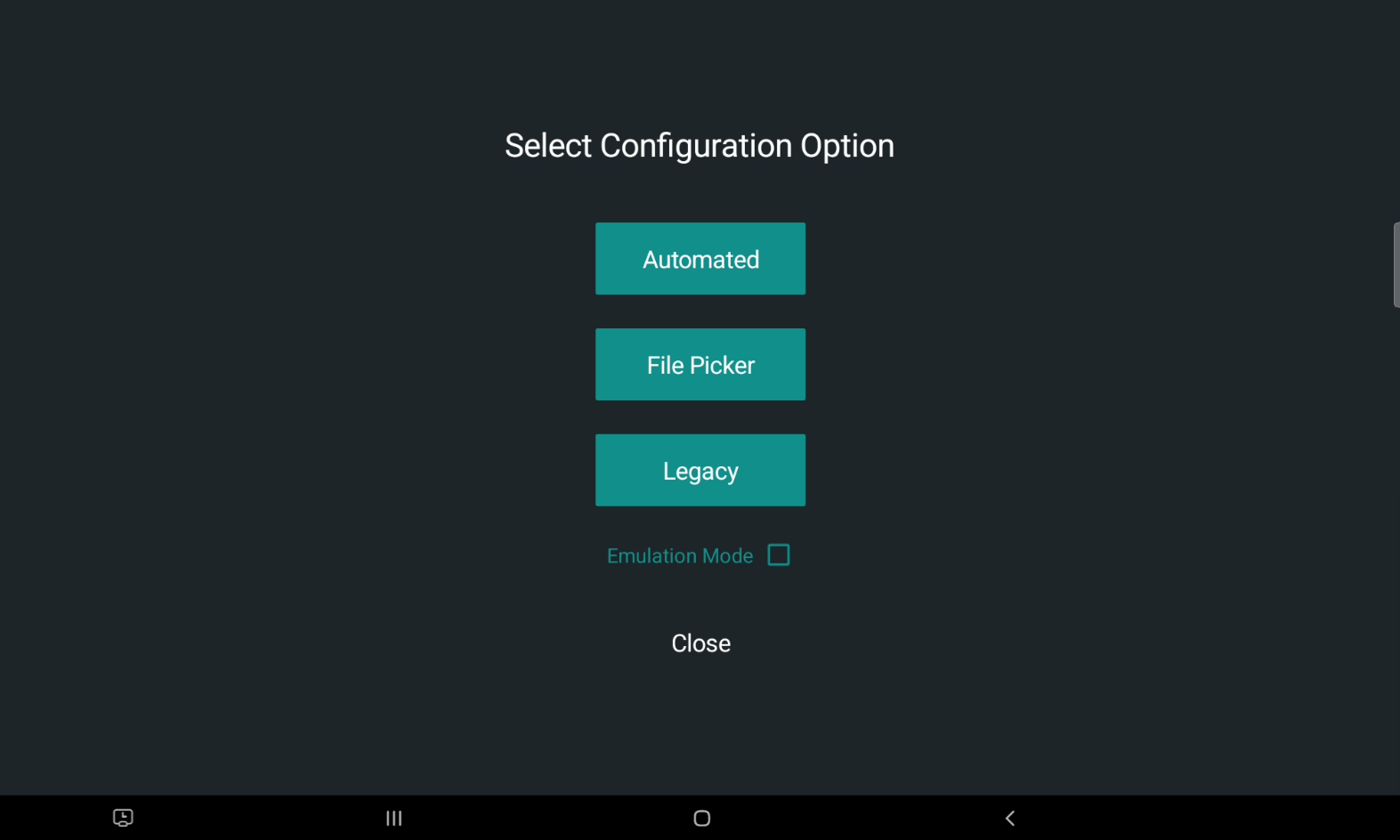
The Auto Configuration screen opens.
-
Choose one of the following Configuration options:
Option Description Automated Opens the Automated Configuration screen where the user can enter the appropriate configuration credentials. This will only work for agencies that have been granted access to the automated configuration servers and given credentials to authenticate.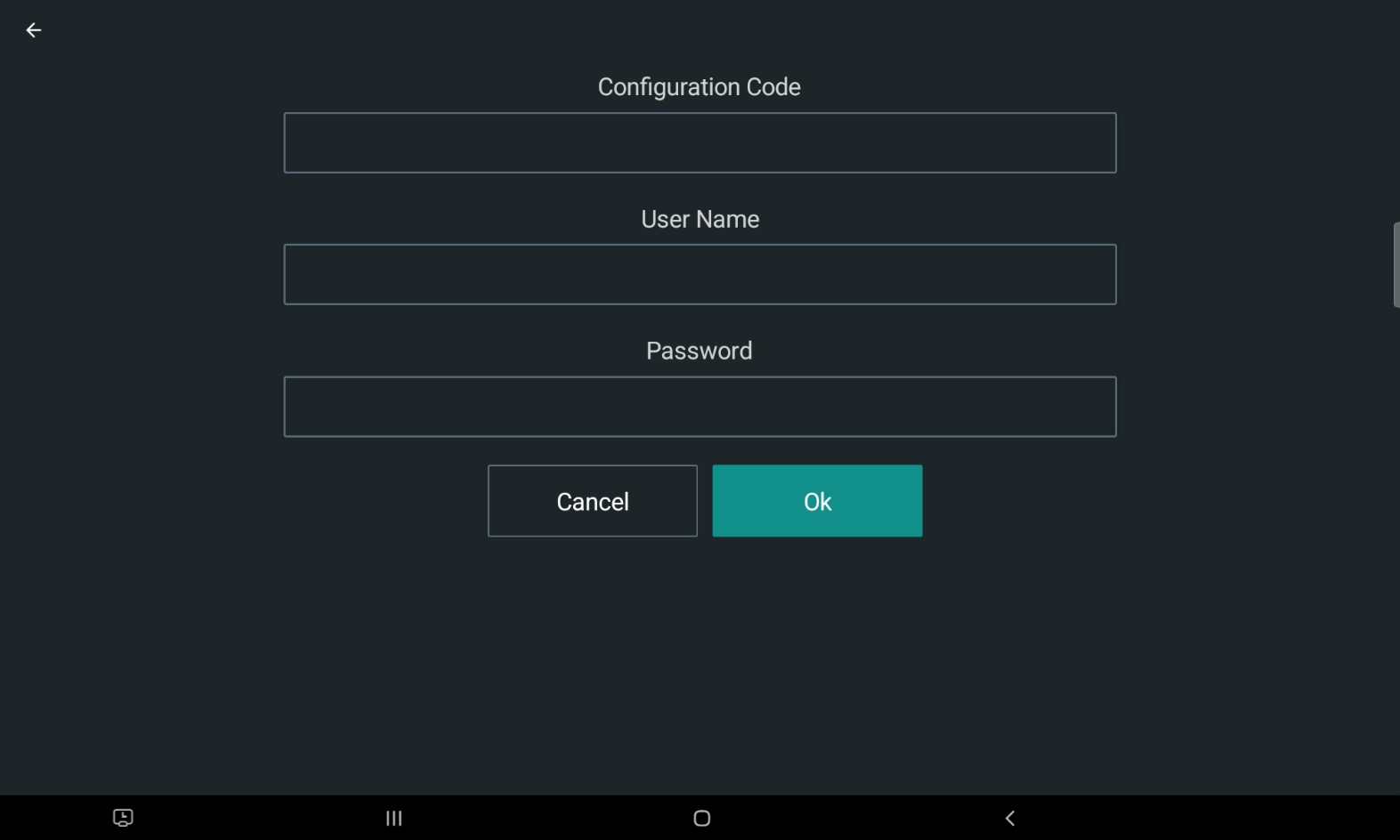
File Picker Opens the OS File Picker and allows the user to manually select the configuration file for the application. This file must be using a JSONformat, but can have any name and be located anywhere the File Picker has access to, including cloud drives. The file will be downloaded, validated and stored in the local app storage appropriate for the OS (Android, iOS, Windows).Legacy DriverMate will look for the DriverMateXam.json file in the Documents folder. If found it will load the configuration into the local app storage for the appropriate OS (Android, iOS, Windows). This option will only be available for DriverMate deployed for Android OS 10 and lower. If this option is not available, then it means that the OS version will not allow DriverMate to directly load the file from the Documents folder.
- Optional:
Select the Emulation Mode checkbox with
Legacy or File Picker.
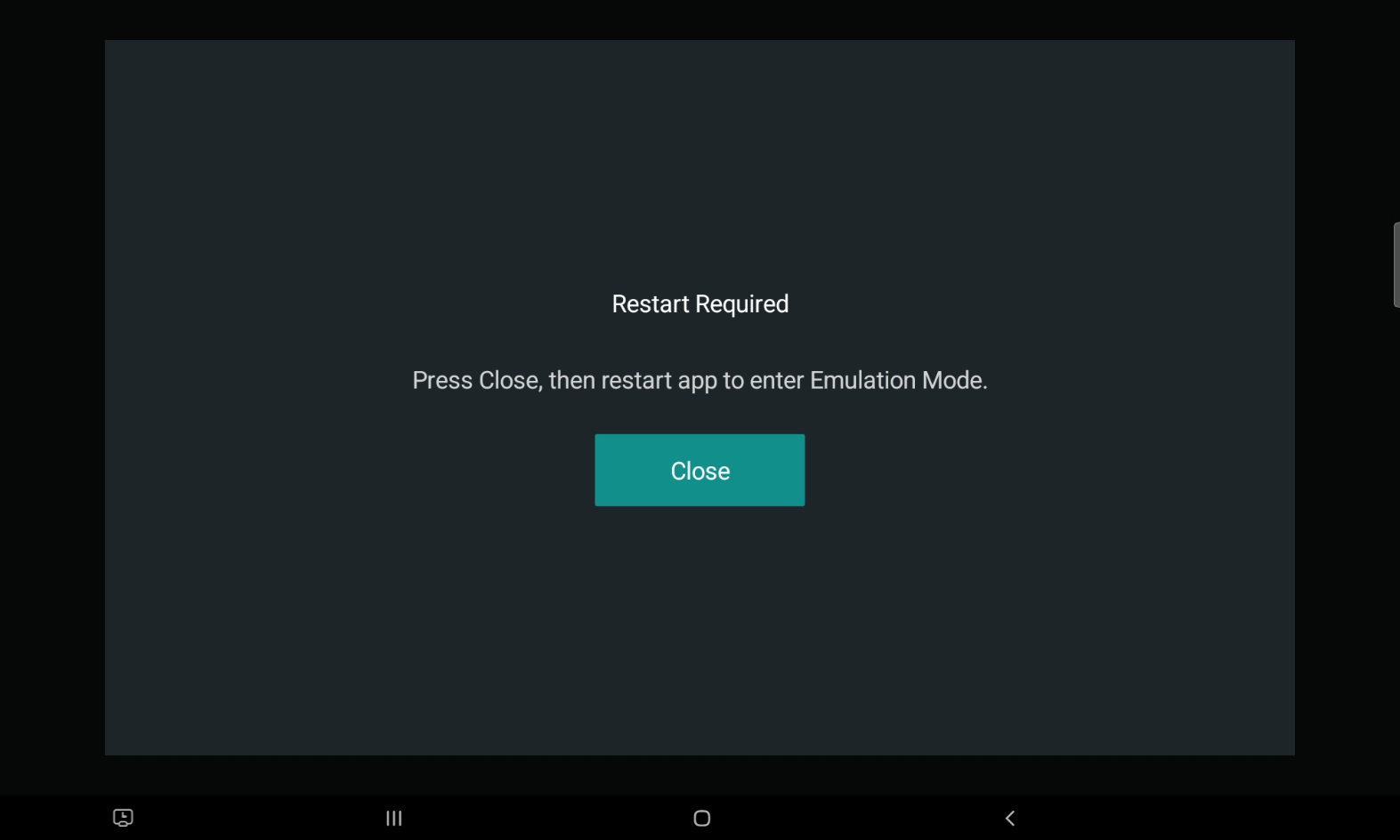
The Restart Required pop-up window opens.
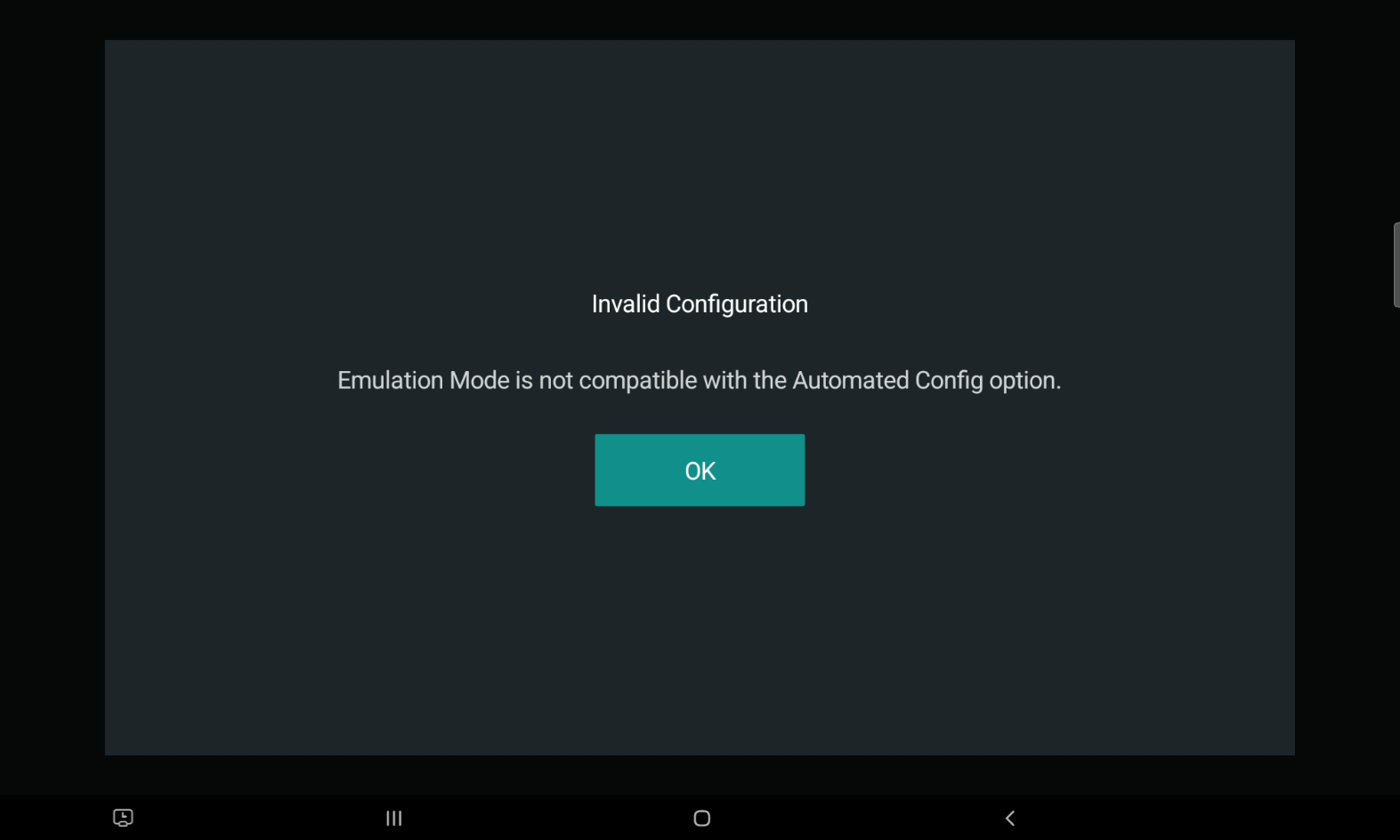
 Restriction: Automated cannot be selected, and is not compatible with Emulation Mode. If selected, an Invalid Configuration pop-up window opens indicating it cannot be attempted.