
Capturing a Passenger Signature
Driver's can capture a passenger's signature for single and group trips when the trip is performed, and after fare is collected.
Before you begin
- Funding Sources must be configured in the PASS workstation.
- The Fare Collect Enable property must be enabled in DriverMate settings.
- The Client Signature Capture property must be enabled in DriverMate settings.
Procedure
-
Arrive and perform the event from the Manifest
screen.
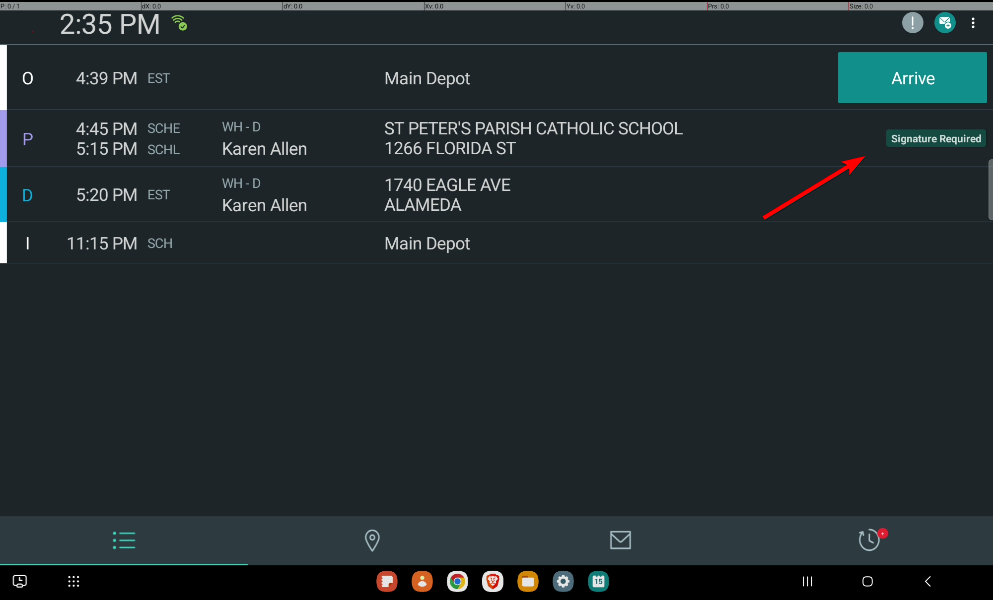
When arriving an event, it may have a Signature Required tag next to the event.
-
In the Fare Summary screen, tap
Submit to collect the fare.
The Signature Capture screen opens.
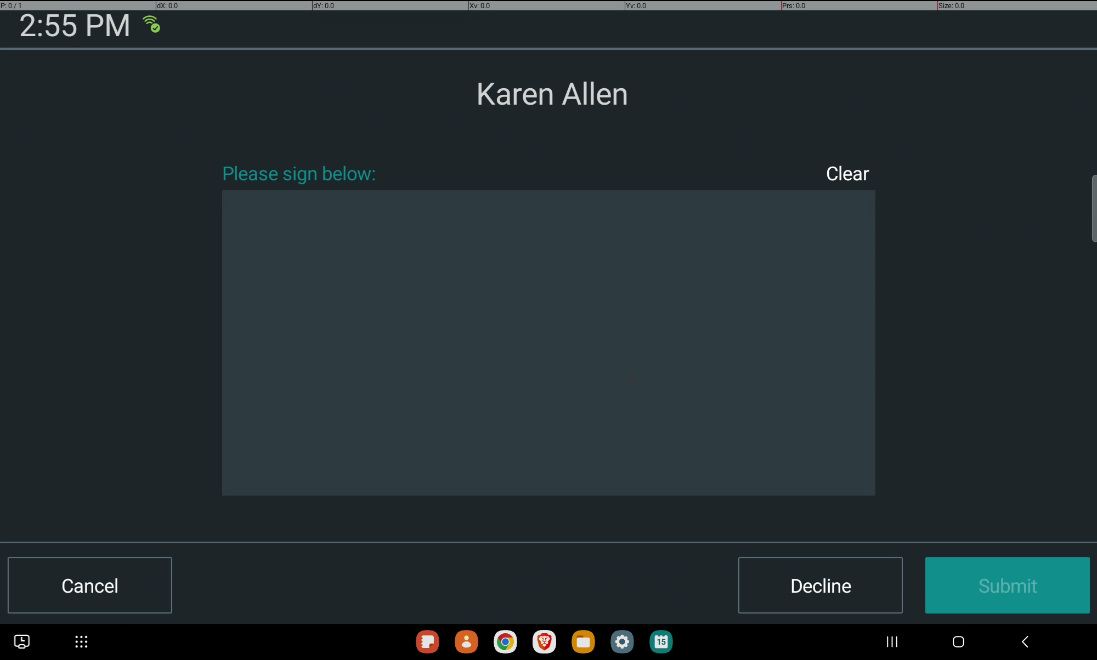
- Optional: If the passenger makes an error, tap Clear to reset the signature box
- Optional:
If the driver doesn't require a signature or the passenger refuses to sign, tap
Decline.
Note: This will still perform the trip, and the latest manifest will appear.
- Optional: To go back to the previous screen, tap Cancel.
-
After the passenger has signed inside the signature box, tap
Submit.
Note: For group events, the process will be the same as single events, however an All Signatures must be collected before perform all pop-up window will appear for the following scenarios:
- The Fare Collect Enable property is disabled, and the Client Signature Capture property is enabled. Then, Perform All is tapped without collecting a signature.
- Both Fare Collect Enable and Client Signature Capture property are enabled, but Cancel was tapped on the Signature Capture screen instead of Submit or Decline.