Place text in quotation marks for exact match search results.
Adding Special Points
After creating the Special Points ancillary data, you can add them to stop
patterns.
Before you begin
Open the Special Points tab in the
Route Definition screen.
Procedure
Select a stop pattern in the Stop Patterns grid. The stops
associated with the selected stop pattern appear on the Special
Points grid.
Select the stop where you want to insert the
special point.
Click Route Definition > Add Point or click Edit:
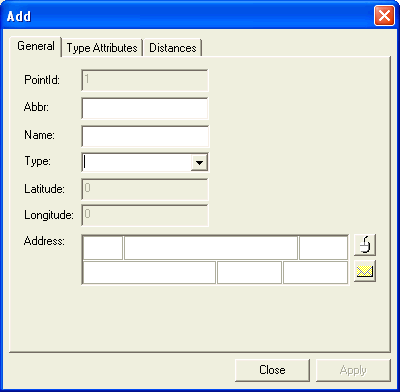
The Add dialog box appears.
A number for the new point automatically appears in the
PointId field.
In the Abbr field, type an abbreviation for the special
point.
In the Name field, type a name for the special point.
In the Type drop-down list, select the appropriate type for the
special point.
The Latitude, Longitude fields and
Address fields are automatically filled in using the geocoded
points data.
Click Apply.
Results
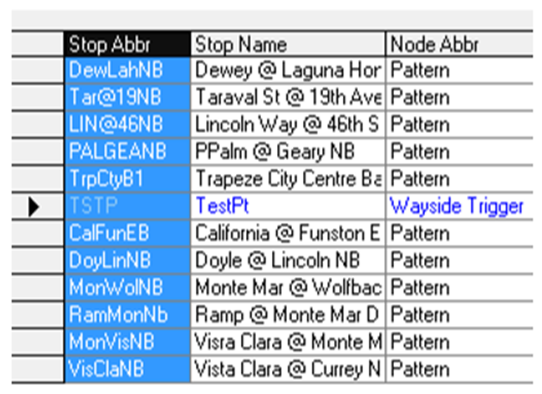
On the grid, the special point appears in the row below the stop which you selected in step
2. The special points are shown in blue in the following sample grid:

 The Add dialog box appears.