
Editing PassRTV Context Properties
To control which data appears in COM views, you can set PassRTV context property values.
Before you begin
About this task
If a field appears beside a property name, you can set one property value that applies to all users and groups.
If you change context property values for a view that is already open, you must open the view again for the changes to take effect. Context property changes do not take effect when you refresh data in the view.
Procedure
- Click Menu.
-
Click .
Context Properties opens to the All tab.
-
Click the plus (+) sign beside the PassRTV folder.
A folder appears for each real time view. Each folder contains properties for the specified view.Note: PassRTV context properties are also used for real time views found in Trapeze4 Dispatch Manager. Not all PassRTV context properties apply to COM.
-
Click the plus (+) sign beside the folder for the view for which
you want to set property values.
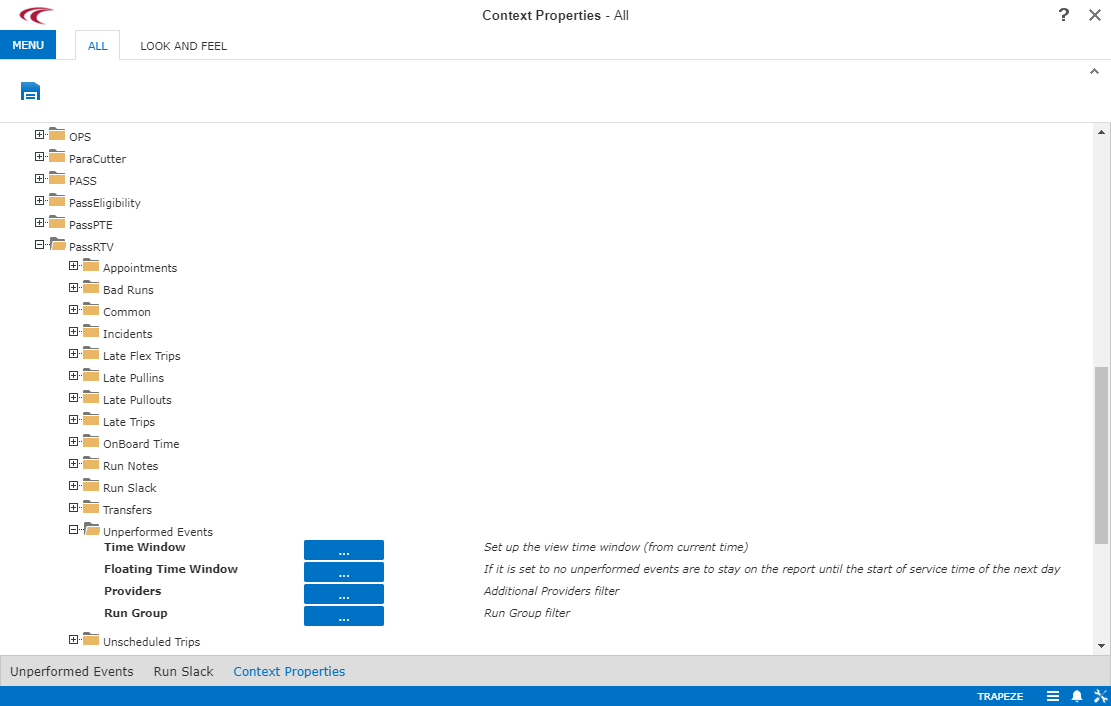
Context Properties shows view properties. Either an ellipsis button or a field appears beside each property name.
-
For each property with a field, type a property value.
If a field appears for a property, the property value applies to all users, and you cannot set values for particular users and groups.
-
For each property with an ellipsis (...) button, click the ellipsis button. The
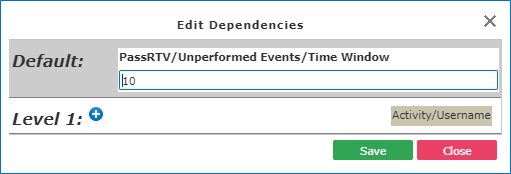
Edit Dependencies dialog box appears.
-
Do one or more of the following:
To... Do this... Specify a property value for all users Specify the value in the Default field and click Save. Specify a property value for a particular user or group Click the Add Dependency button: 
Empty fields appear in the Level 1 area.
In the first empty field, specify the property value.
In the Activity/Username field, type the user or group name to whom the property value applies.
Click Save.
Delete a property for a specific user or user group Click the Add Dependency button: The screen shows property values for specific users and groups.
For each property value that you want to delete, click the Delete Dependency button:
Click Save.
-
On the Context Properties window, click the
Save button:
