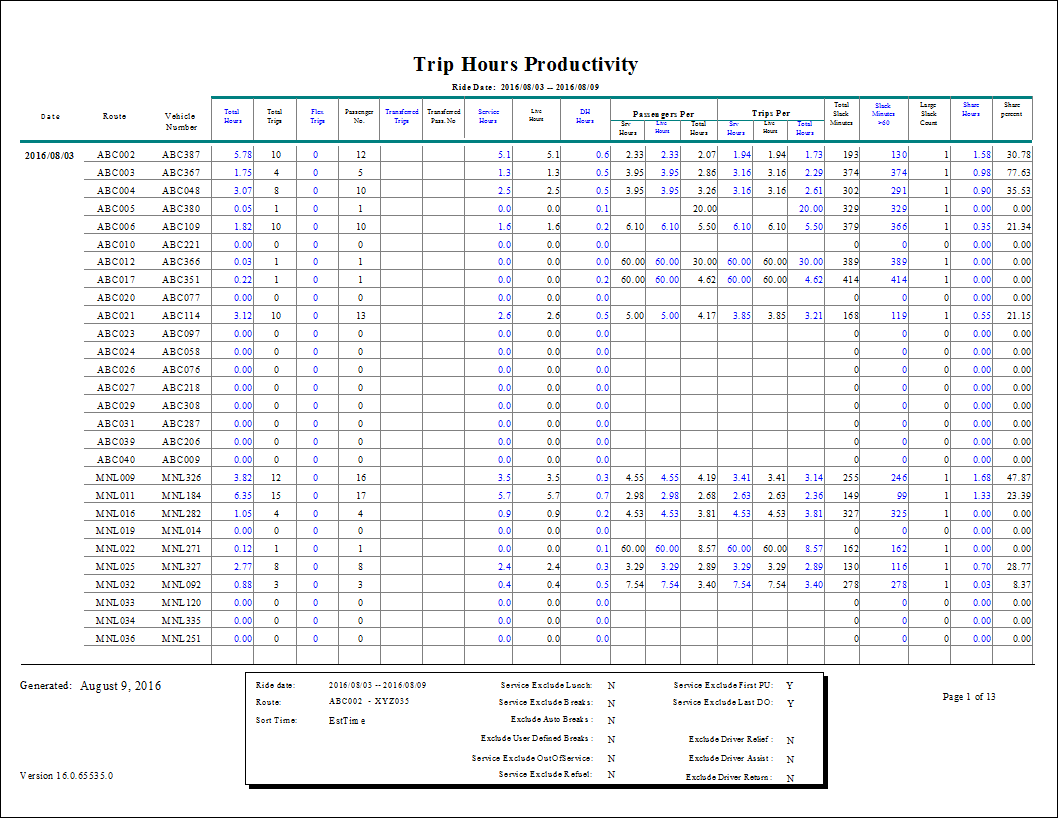
Trip Hours Productivity Summary (FLEX) Report
The Trip Hours Productivity Summary report shows service and revenue hours for one or more routes.
| Parameter | Description |
|---|---|
| Type | Schedule type. Note: The report can only be run for live schedules. |
| Date/Weekday | Specifies whether the report is for specific dates or days of the week. Choose
the option appropriate for the schedule type:
|
| From Route | First route in the report. |
| To Route | Last route in the report. |
| Provider | From the drop-down list, choose All or a specific provider for the report. |
| Service | Select any of the following to remove from service hours and distances:
|
| Show Run Details | If selected, run details are included. |
| Include Taxi Runs | If selected, taxi runs are included. |
| Slack Minutes > Limit | Includes only slack time (time when no passengers are on board) that occurs in blocks larger than the specified amount. |
| Sort Time | Sort order used in the report:
Note: The Sort Time should be set to the Est Time or the time that is entered in
the Schedule Editor. For example, do not sort on actual arrive time if you have not
entered these times. |