Adding Lines
Create lines in ancillary data, and then associate the correct lines with line groups.
About this task
Procedure
- Press F3 and set the context you want to work with.
-
Click .
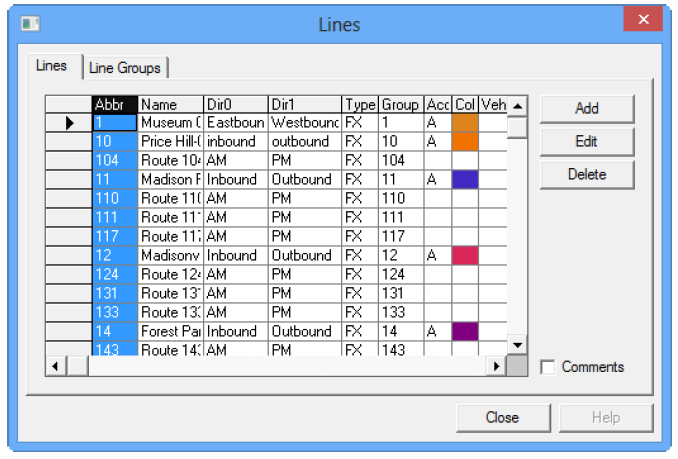
The Lines dialog box opens:
-
Click Add.
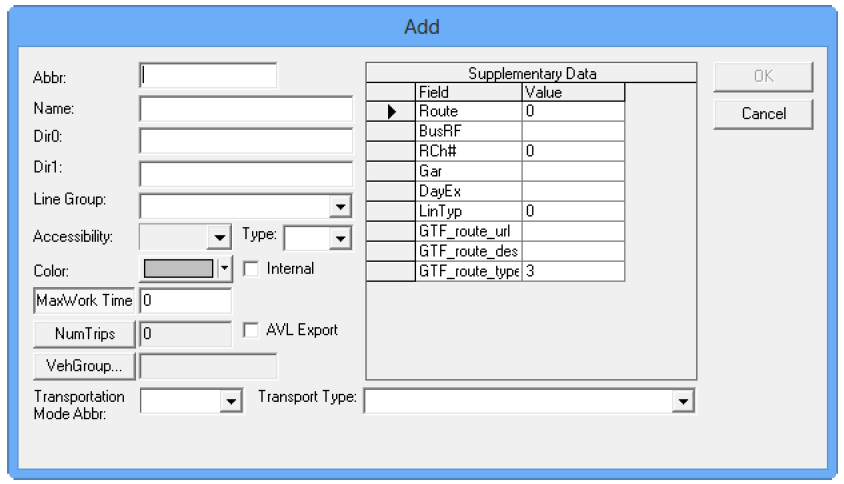
The Add dialog box opens:
-
In the Abbr box, type an abbreviated name for the
line.
The Line Group is automatically populated with the same line abbreviation when you move to another field.
- To assign the line to another line group, select a line group from the Line Group drop-down box.
- In the Name box, type a full name in the box.
- In the Dir0 box, type one of the directions that the route takes (for example, Westbound).
- In the Dir1 box, type the opposite direction that the route takes (for example, Eastbound). If your route is a loop route, use the Dir0 box.
-
(If Applicable) If your site also has the Trapeze FLEX application, select the
Flex check box (i.e., set to "On").
Note: Do not select this option if you are only using FX.
-
Perform any of the following steps as applicable:
-
If your site uses Trapeze INFO-Agent, select the Internal check box. It is used to designate lines which are not providing public service such as school lines, and which would not, therefore, be appropriate to include in public timetables/itineraries.
-
From the Accessibility drop-down box, choose an accessibility type to apply to the line. This is useful if you create a line designated as entirely bike rack available, for example. See Accessibility Types for information on creating accessibility types.
-
If your site uses a Transitmaster application, select the AVL Export check box to export lines and the trips associated with them into TransitMaster. If the check box is clear, the selected lines and their trip data are not exported.
-
In the Color selection box, click the arrow beside the color indicated. Choose the color to represent this line when viewing it on the map. (If you set a Route color in , it will be the color on a new line by default; otherwise, the default is gray.)
- If you have Supplementary Data created, fill in the appropriate information in the Value fields.
-
- (Used in BlockBuster only) In the Max work time box, type the maximum time that this line can be worked. The maximum time limits how long an operator can be on the route continuously.
-
(Used in BlockBuster only) To restrict the number of trips that can be applied
to the line, click NumTrips. In the
NumTrips box, type an appropriate number.
Note: Normally, a value is entered in the Max work time or NumTrips box but not both.
-
Click VehGroup.
The Vehicle Group dialog box opens:
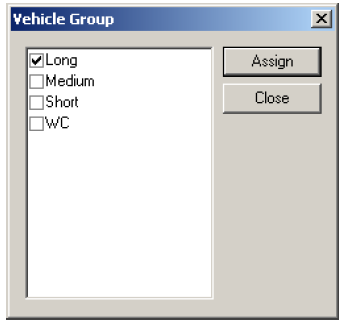
- Select the check box beside the groups you want to apply to the line and click Assign. When you apply a vehicle group (or type) to a line, you restrict the vehicle assignments that can be made to it during blocking. This is useful if you need to guarantee a certain capacity vehicle, for example, for the line.
- (If Applicable) From the Transportation Mode Abbr. and Transport Type drop-down box, select the appropriate mode and type. For example, if your site uses Trapeze FLEX, select Flex.
- (If Applicable) If your transit site uses Revenue numbers, type the appropriate value in the Revenue No field. This field is shown when you set the FX system property, Use Revenue No to Yes. Contact your Trapeze representative for more information.
- Click OK.
-
Click Close.
Note: To add a comment to a line, mark the Comments check box in the Lines dialog box. A new column is revealed to the right of the Color column. You may have to scroll to the right to view the Comment column. It contains the comments that are associated with each line.Creating, editing and removing comments is discussed in Adding User Comment Types. Comments are typically used for reports such as Block or Driver Paddles.