
Deleting Lines
Delete lines with the Lines dialog box.
Before you begin
Procedure
- In the Lines dialog box, select the line that you want to edit.
-
Click Delete.
The Delete Line message box opens:
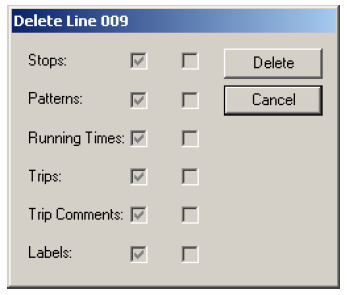 Note: The number (###) in the title bar represents the selected line number.
The message box shows you a list containing Stops, Patterns, Running Times, Trips, Trip Comments, and Labels. Each of these has a check box beside it. If the check box is marked, it means that those items are going to be affected by the deletion and removed if you continue.
- Click Delete in the Delete Line dialog box. As you delete, the check boxes in the second column are marked in progression as each selected item is deleted.
- Click Close.