
Setting Up Transfers
Using the Transfer Wizard, you can set up transfers between polygons.
Before you begin
About this task
If you have Trapeze FX or Trapeze Flex, you can also use the Transfer Wizard to set up transfers between polygons and fixed routes. When entering transfers for fixed routes, ensure that you select the correct sign-up period. You will then see available lines in the sign-up period, along with polygon names in the From and To lists.
Procedure
-
Click .
The Transfers tab of the Transfer Wizard dialog box appears.
- In the list at the top right of the dialog box, you may need to click the appropriate sign-up period.
-
Click the New Transfer button:

The middle pane in the dialog box is dimmed and input fields at the bottom of the dialog box are available.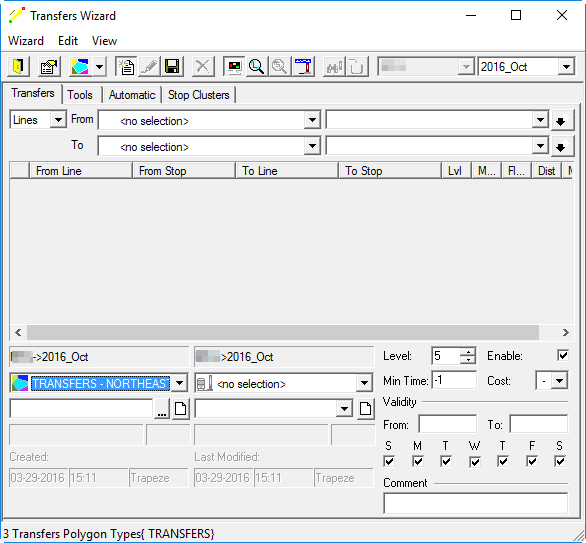
- In the list below the From agency and sign-up period, click the origin polygon for the transfer.
- In the second field below the From agency and sign-up period, enter the first few characters of the transfer point name. If a list of names appears, double-click the desired point.
- In the list below the To agency and sign-up period, click the destination polygon for the transfer.
- In the second field below the To agency and sign-up period, type the first few characters of the transfer point name. If a list of names appears, double-click the desired point.
- Optional:
Complete one or more of the following fields:
- Level
- Specifies the priority level of the transfer.
Transfers can vary from levels between 1 (high priority) and 10 (low priority). For example, there may be more than one stop near a client’s destination. When searching for an itinerary, a level 1 stop is selected over a level 8 stop. The value set by default is 5.
- Min. Time
- Specifies the minimum transfer time.
- Cost
- Specifies the cost of the transfer. For example, Zero Cost if Stay-In-Seat.
-
In the Validity frame, enter the dates for which the transfer is
valid in the From/To fields and select the week day check boxes for the days the transfer
is in active use.
If no dates are entered, the transfer is valid all the time.
- Optional: Type a comment about the transfer.
-
Click the Save button:
