
Viewing Transfers Between Polygons
You can view and create transfers between polygons using the Transfer wizard.
Before you begin
About this task
Procedure
-
Click .
The Transfers tab of the Transfer Wizard dialog box appears.
- In the list at the top right of the dialog box, you may need to click the appropriate sign-up period.
-
(If applicable) If the Polygons button is dimmed, click
it.
The Polygons button appears in color:

-
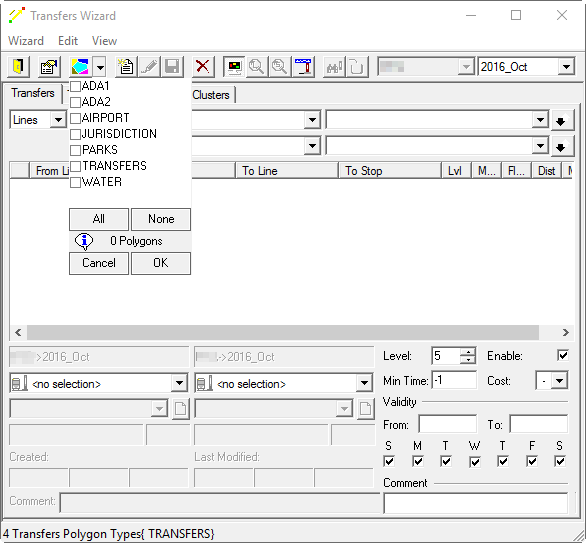
Click the down arrow beside the Polygons button.
A list of polygon types appears.
-
Select the check box for the polygon type that is used to define service areas, and
click OK.
For more information, see Transfers Functionality.
-
Do one or both of the following:
- In the From list, click the origin polygon for transfers that you want to view. If viewing transfers for inter-agency trips, you must first choose the agency and sign-up period in the From lists.
- In the To list, click the destination polygon for transfers that you want to view. If viewing transfers for inter-agency trips, you must first choose the agency and sign-up period from the To lists.
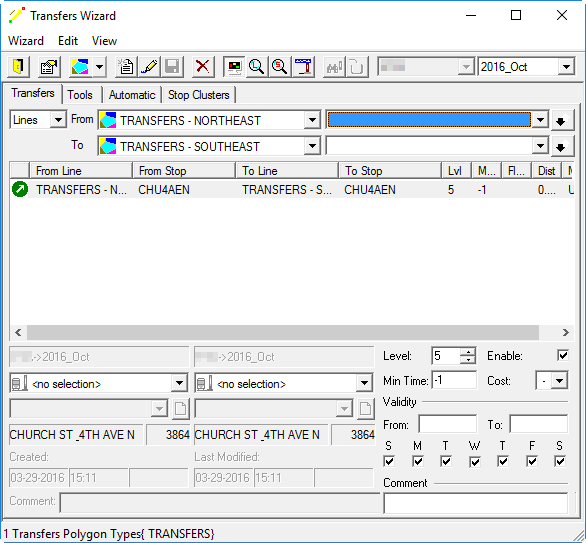 The middle pane of the dialog box shows transfers between the specified polygons.
 - Optional: To see detailed information about a transfer, click the transfer in the middle pane of the dialog box. Fields in the lower pane of the dialog box show transfer information.