
Adding Polygon Subsidization to Period Passes
Period passes can be defined to offer clients subsidization based on movement between polygons.
About this task
Procedure
-
Set the Polygon type for period pass subsidization
system property:
- Click .
- On the Profile tab, click .
- Select a polygon type to be used for period pass subsidization. Any from and to polygons used for creating fare subsidizations must be defined with the selected polygon type.
- Click Apply.
- Click OK.
- Click .
-
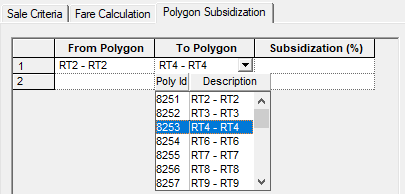
For a selected Period Pass and Period, in the pass details section, click the
Polygon Subsidization tab.
-
For each polygon subsidization row, select a From
Polygon, a To Polygon and type a value
between 0 and 100 as the Subsidization percentage.
The percentage is applied to the client fare after the Copay Amount (defined on the Fare Calculation tab) is paid.
For example, if a Subsidization of 50% is defined and the Copay Amount is $2 for a FareType that is regularly $5, then a client using that fare type will pay $2 + 50% of the remainder ($3), or $3.50 (that is, $2 + $1.50).
If no subsidization amount is defined, the system presumes 100%, and all of the fare amount minus the co-pay amount is covered. If no co-pay amount is defined for the client's fare type, then the polygon subsidization covers the defined percentage of the whole fare amount.