Defining Sales Criteria for Period Passes
Sale criteria lists the age range of clients who can purchase a period pass.
About this task
Procedure
- Click .
- Select the period pass to edit.
- In the list of periods, select the period to which to add a sale criteria.
-
In the lower half of the dialog box, click the Sale Criteria
tab.
-
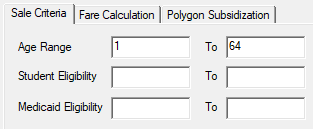
Provide the following information as needed:
- Age Range
- The youngest age of clients who can purchase this period pass.
- Age Range To
- The oldest age of clients who can purchase this period pass.
- Student Eligibility
- The start date from when the client must have started being a student to be allowed to purchase this pass.
- Student Eligibility To
- The end date after which the client would no longer be a student and can no longer purchase this pass.
- Medicaid Eligibility
- The start date from which the client must have started being eligible for Medicaid to be allowed to purchase this pass.
- Medicaid Eligibility To
- The end date after which the client would no longer be eligible for Medicaid and can no longer purchase this pass.
- Click Save.
-
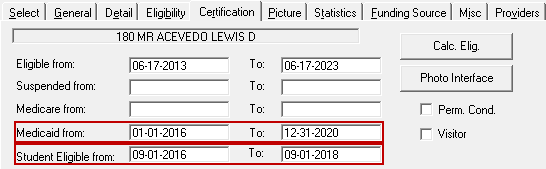
In Client Registration (), on the Certification tab, ensure that the
Student Eligible from and To dates are
specified for clients who are eligible to purchase student passes and that the
Medicaid from and To dates are specified
for clients who are eligible to purchase Medicaid-related passes.