
Changing Column Appearance
Column appearance can be changed for headings and for column cells in view grids.
Before you begin
About this task
Procedure
- In the Edit Fields For drop-down list, select the UI group to which the new layout will apply.
-
In the Fields or Table pane, right-click the
field or column whose appearance you want to modify and click
Properties.
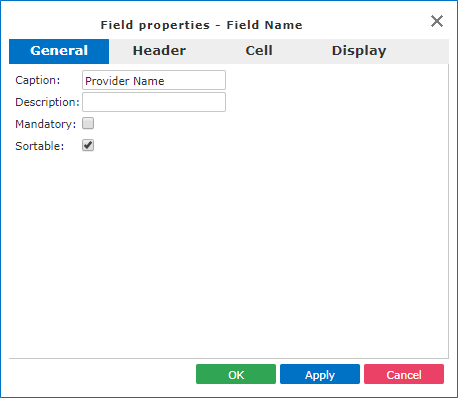
The Field Properties dialog box appears.
-
On the General tab, do one or more of the following:
- Optional:
On the Header tab, do one or more of the following:
To change the... Do this... Text style Click buttons to bold, italicize, or underline the text. Horizontal text alignment Click buttons to align the header to the left, the center, or the right. Vertical text alignment Click buttons to align the header to the top, middle, or bottom. Borders Click the icons as required to place horizontal and vertical borders around the caption. Font Select a font from the list. Font size Select a text size from the list. Width Specify a column width. If column widths are used in both the Header tab and Cell tab, the larger column size will be applied.
Text Color Select the text color. Background Color Select the background color. Header and cell properties affect the entire table.Header modifications are applied to the Edit Layout screen and the view. - Optional:
On the Cell tab, edit settings as needed.
Header and cell properties affect the entire table.Cell modifications are applied to the Edit Layout screen.
- Optional:
On the Display tab, edit settings as needed.
Display modifications are applied to the selected column in the view.
- Click OK.
- Click Save.