
Cloning Master Runs
Cloning Master runs allows you to create Master runs that are similar to existing Master runs.
Before you begin
About this task
Procedure
- Select the Master option.
-
Click Display.
All master runs are shown in the grid.
- Highlight the runs to be cloned.
-
Click the Clone button:

The Type, Date/Weekday, and Copy Break Events options are only enabled when cloning daily (template or live) runs.The Clone Runs dialog box appears.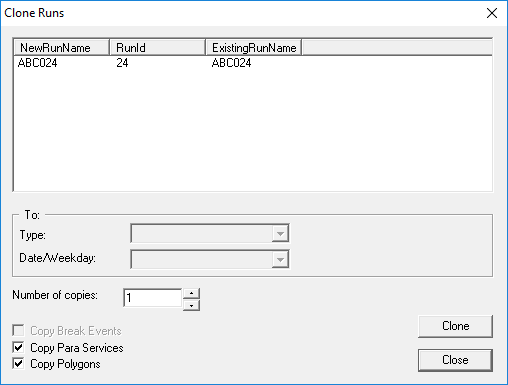
- Optional:
To rename the clone runs, do one of the following:
- Click the run name in the NewRunName column and type a new name.
- Click the run name, press F2, and type a new name.
-
In the Number of Copies field, type the number of runs to be
created based on the selected runs.
If multiple runs are cloned, each run will be copied the defined number of times.
- Optional:
Clear Copy Para Services if you do not want the assigned
paraservices (from the Para Service tab) of the selected runs to be
copied into the new runs.
This check box is selected by default.
- Optional:
Clear the Copy Polygons check box if you do not want the
polygons assigned to the selected run to be copied to the new run.
This check box is selected by default.
-
Click Clone.
A confirmation dialog box appears.
-
Click Yes to continue cloning the selected run.
A message appears, indicating the run was cloned.
- Click OK.
- In the Clone Runs dialog box, click Close.
- Press F5.
Results
Except for the Run Name and Run ID number, all data for the clone runs is the same as for the original run.

If multiple copies were created and a new name was defined, the first copy receives the original new name and the subsequent copies use the cloned run naming convention of that new name. Otherwise, all clone runs use the clone run naming convention.