
Creating Master Runs
Master runs can be used as a template when creating new runs.
Before you begin
About this task
Procedure
- Click the Master option.
- Click the Add New button:
 The Detail tab opens.
 -
In the Run Name field, type a run name up to 10 characters long.
This name should be something that is easily recognized. For example, 100YC for route 100 Yellow Cab.
A Run ID is assigned to the run after you have saved.
If the Unique Run Name property is set to No, you cannot create duplicate master run and daily run names. -
In the Type list, select the service type on which your run
operates (Para, Taxi, Flex, Fixed, Bulk, Clipboard).
Schedules are maintained for Para runs, whereas no schedule is maintained for Taxi runs. Think of a taxi run as a pool with a capacity to hold an infinite number of bookings. Only bookings that cannot be accommodated on Para runs should be scheduled to Taxi runs.
-
(Master runs only) Click the Calendar button:

The Date Intervals dialog box appears. This tool is used to define the daily, weekly, monthly, and/or yearly intervals on which the master run is activated.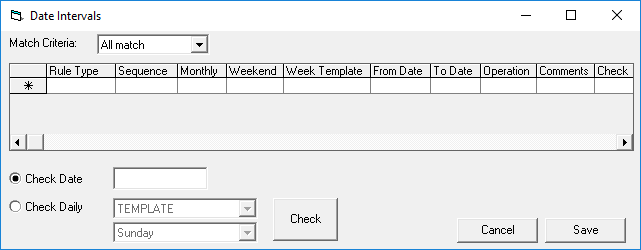
-
Create any applicable date interval rules.
Master runs are activated and suspended in the same way as subscription bookings.
If there are no date interval rules, the run is not activated at all.
In the Date Intervals dialog box, DO NOT specify a date in the To Date field unless you are certain that a run ends on that date.
Before an end date has arrived for a run, make sure that any subscription trips placed on a template run are moved to another run. Otherwise, all activated live trips on this run are not matched on the designated day of service and remain unscheduled.
When the end date has arrived, you must also remember to remove the run from the template list; otherwise, it remains there after it has expired.
- Fill in any other fields you require on the Detail tab.
- Click the Save button:
