
Renumbering Runs in a Series by Equal Increments
You can renumber a series of runs in succession by equal increments, for example, by increasing the number in a series by one or by adding ten.
You must be granted the permission to be able to perform this task.
When renumbering runs, you can change the run number without changing the run name.
The fields in the Run Renumber screen can accommodate up to 9 digits. Values that are updated to more than 9 characters will be truncated or reverted to their original number of characters.
To customize your run numbers, contact your Trapeze representative.
- On the Runs screen, select the runs you want to renumber.
-
On the screen toolbar, click the Run Renumber button:
 The Run Renumber dialog appears.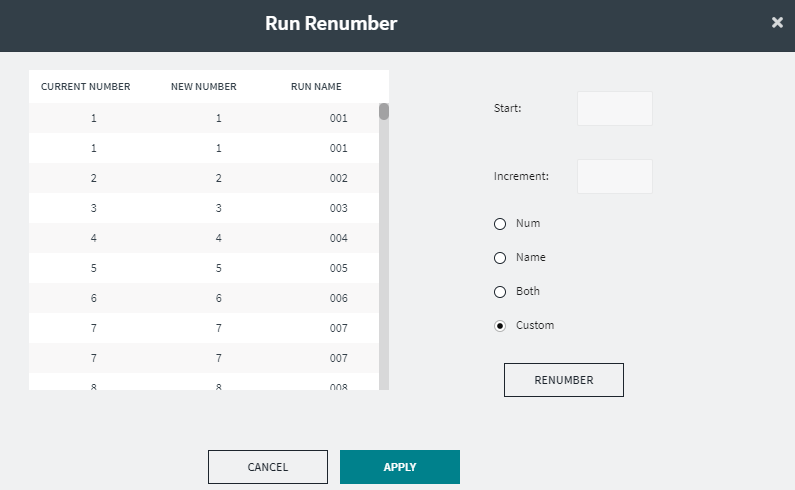
- Optional: Click the Custom option if you use custom renumbering.
- To update the run numbers or run names independently, select the appropriate option: Num or Name. If you select Both, the run numbers and run names are both updated. This option also applies to transit sites whose run names and run numbers are the same.
- In the Start field, type the value with which you want to start the series.
- In the Increment field, type the value by which you want the numbers to increase, for example, 10, which would mean that the numbers of the runs in the series would increase by 10:10, 20, 30, and so on.
-
Click Renumber.
The selected runs are updated.
- Click Apply.