
Adding BSM Ancillary Data
To add, edit, or delete BSM ancillary data, use the toolbar that appears on the first column of each BSM ancillary data record.

When you click the New or Edit buttons, the Details fields of the ancillary data are shown on the right pane.
The following procedure describes adding BSM ancillary data types (except for Attachment Types):
- Click Settings.
-
Click Config in the Admin menu.
The Configurations screen appears.
- In the Configurations pane, click the ancillary data you want. The appropriate pane opens in the right section of the screen.
-
On the toolbar, click the New button:
 .
.
The Details fields appear on the right pane. The following example shows the Amenity Type Details fields:
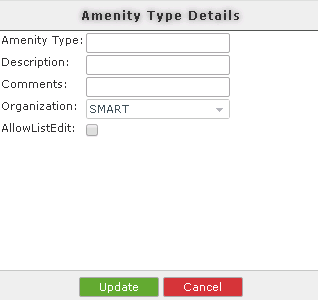
- Enter or select the appropriate values in the fields.
-
Click Update.
Note: When saving a new ancillary data type, you are unable to see the Update button unless you are in the Master (M) screen mode. If you are in the Locked (L) mode, you are only able to view the screen. If you are in the Tablet (T) mode, you are only able to edit points that you have signed out.