
Saving Block Scenarios
Save the block scenarios whose parameter settings you may want to apply or reuse for other run solutions.
-
Perform one of the following steps:
- In the main menu, click .
- Click the Block Scenario button:

The Block Scenarios dialog appears. -
To save the scenario, perform one of the following steps:
- Click Save.
- On the screen toolbar, click Save:

The New Scenario dialog opens.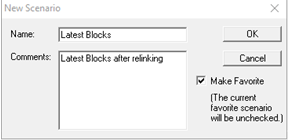
- In the Name field, type a name for the new scenario.
- Optional: In the Comments field, type a description or information on the scenario.
- Optional:
To save it as a favorite, select the Make
Favorite checkbox.
Marking a scenario as a favorite does not affect how Run Block Optimizer or other applications such as FX performs; it is mainly used for reference.
-
Click OK.
The scenario is added to the grid in the Block Scenarios dialog.