
Adding Run Types
The run types are defined by using the Run Types screen in BlockBuster. It is necessary to define the run types before you open the BlockBuster screen.
The general run types are:
- Legal - Adhere to the union agreements and your transit site policies
- Illegal - Do not adhere to the union agreements and your transit site policies.
Note: For each legal (also called desirable or restricted) run type you create, you should
have a corresponding illegal (also called undesirable or unrestricted) run
type.
Any Run run type that appears by default on the screen refers to all kinds of run types.
-
In the Navigator, click Run Types:
 The Run Types screen appears.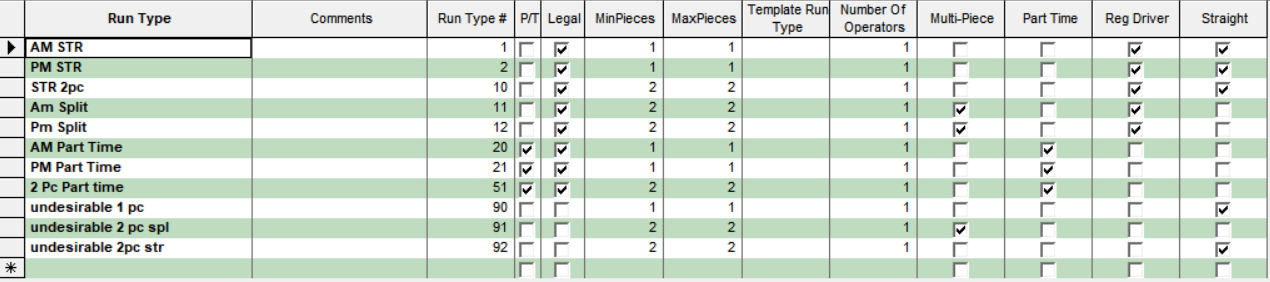
- In the Run Type field on the row marked by an asterisk, type the name of the new run type.
- In the Comments field, type comments about the run type.
- In the Run Type # field, type a run type number.
-
To create a specific type of run, select any of the following options:
- Part-time runs: Select the checkbox in the P/T column.
- All legal runs: Select the checkbox in the Legal column.
- Run type based on another run type: From the Template Run Type list, select the appropriate run type.
-
In the MinPieces and MaxPieces columns,
type the minimum and maximum number of pieces. The data you type in these columns become
hard rules that cannot be changed.
When using the template, the system applies sign-up-based parameters.
- If this data is to be copied into Trapeze OPS, type the number of operators who are going be assigned to this run type in the Number of Operators field. If you leave it at 0, the system interprets it as one operator.
-
Click another row or click the Save button:
A message box appears asking if you want to save the record. Click Yes.