
Renumbering Blocks
Renumbering blocks in the bus graph is similar to performing renumbering in the Blocking screen in Trapeze FX.
- Select the block you want to renumber.
-
Right-click on the grid and from the shortcut menu, select Renumbering
Blocks.
The Renumber Block dialog appears.
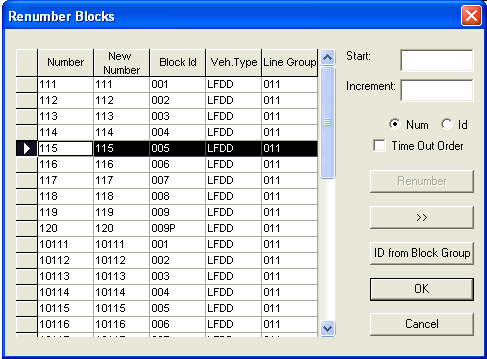
- In the Start field, type a number with which you want to begin your number series.
- In the Increment field, type a number by which you want the number series to increase.
- Optional: To select all blocks for renumbering, click the top field on the marker column. All the rows are highlighted.
- Optional: To re-sort your blocks according to the From time of the blocks, mark the Time Out Order checkbox.
-
Click Renumber. .
The numbers in the New Number column follow the start number and increment you typed
- Optional: To revert to the old number series, click the >> (double greater than) button which copies the numbers in the Number column to the New Number column.
- Optional:
To place the blocks together in one block group, click the ID from Block
Group button.
In Trapeze FX, you can link blocks together into a Block Group through the Vehicle Assignment dialog. The blocks are assigned a single Block Group number. The option to update the ID field fills in the ID with the Block Group number.
-
Click OK.
The Block numbers from the New Number column replace the numbers in the Block column in the Blocked grid.