Place text in quotation marks for exact match search results.
Blocking Other Exception Combinations
After the base set of exception trips has been blocked and you have remaining trips
with exceptions that are unblocked, use the Blocking tool dialog box to
complete the blocking process.
The remaining unblocked trips can not be blocked using the automatic or manual approach
because doing so would affect blocks you have already completed. For example, in the
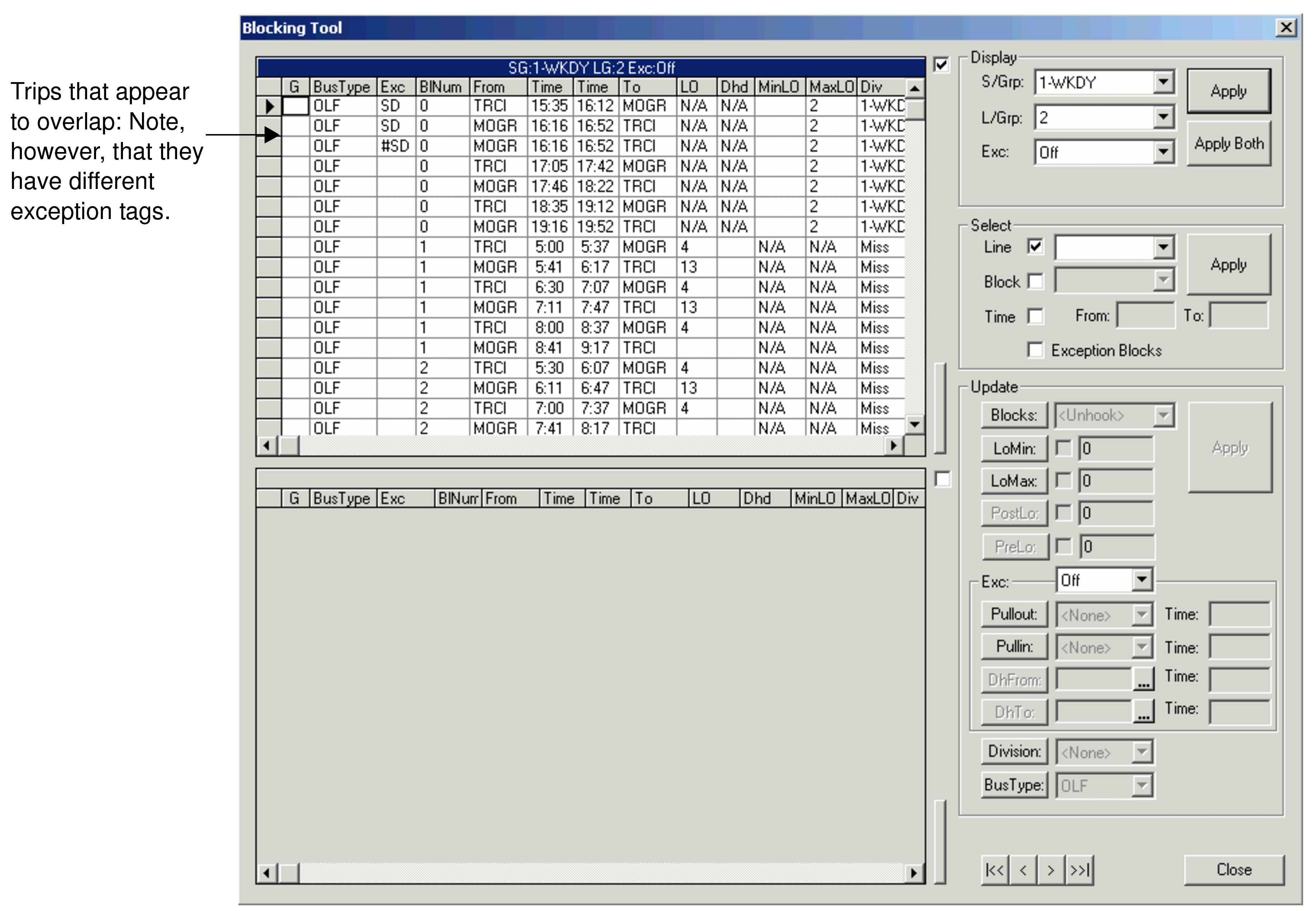
following graphic, look at the two trips starting at 16:00 at node MOGR that appear to
overlap. The blocking process would not put these trips in the same block. However, they do
not really overlap because the first trip runs only on school days and the second trip runs
only on school holidays. Note that they have different exception tags (SD and #SD).
Click Tools > FX Tools > Blocking.
The Blocking dialog box appears. In the
Blocking dialog box, the trips are displayed in the grid. Unblocked
trips appear in the first rows of the grids and are identified by the 0 in the
BlNum column.
Block the trips according to your site requirements.