
Extracting Stop Patterns from Services and Lines
The Extract Stop Patterns tool is used to extract node patterns from the services and lines that you want and apply them to stop patterns.
- Click Tools > Extended FX Data Tool. The Extended FX Data Tool appears.
- In the Service list, choose the service you want. The default is set at <All> for all lines.
-
To select more than one Service, choose
<Custom>.
The Select Service dialog box appears.
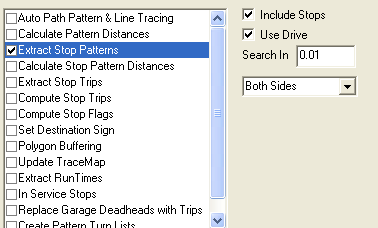
- Select Extract Stop Patterns.
- Optional:
To include the stops, leave the Include
Stops check box selected.
When you select Extract Stop Patterns, the fields that appear in the right section of the Actions frame are similar to those on the Extract tab of the Stop Patterns Edit dialog box.
- Optional:
To assign stops to a route and to search for stops on the system
map, select the Use Drive check box.
The fields below it are activated.
- In the Search in field, type a value within which the system searches node data.
-
Select one of the following options: Both Sides,
Right Side, Left Side.
- Click Execute.
- Click Close.