Line Groups are automatically generated as lines are created in ancillary data. You
must ensure that line groups are defined properly for your site once they are generated. This
involves placing additional lines and/or removing a line from a line group.
Lines are grouped together to create optimal service patterns and service. For
example, two lines may share a portion of a trip or common terminus, and so they belong to the
same line group.
-
Click .
The Lines dialog box appears.
- Optional:
To view all lines associated with a line group at once, select
the Expand All check box.
-
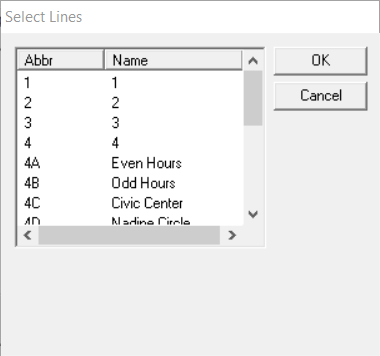
On the Line Groups tab, click Add. The
Select Lines dialog box appears.
-
To select a line or lines from the list, perform one of the following steps in the top
frame:
- Click the line you want.
- Press SHIFT and select consecutive lines in the list.
- Press CTRL and select non-consecutive lines.
-
In the Line Group Abbr field, type an abbreviation for the line
group.
-
In the Line Group Name field, type a name for the line
group.
-
(If applicable) If your transit site requires the use of drop backs (driver blocks),
select the Use Driver Blocks check box.
Note: You must first make sure that the Use Driver Blocks system
property is enabled. Historically, drop backs are used with subway or rail type routes
in the scheduling process. Contact your Trapeze representative for more information.
-
Click OK.

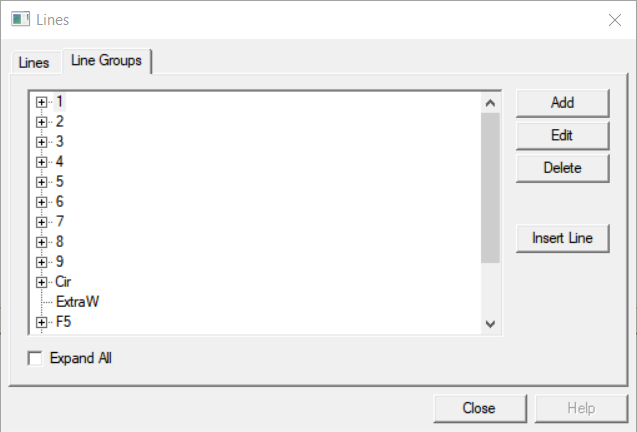 The Lines dialog box appears.