Place text in quotation marks for exact match search results.
Printing Data of Second Grid
You can choose to print the data of the second grid only.
With the Route Definition or Trip Building
screen open, click Print.
The Select Grid Columns dialog box appears. The options
(column headers) in the first grid are selected by default.
To include specific columns, click Select
All.
Click OK.
The Select Grid Columns dialog
box appears with all the options selected. The title bar now shows the name of the second
grid.
Select the columns you want to include in the printout.
Optional: To view the output on a spreadsheet, select the Use Excel check
box.
Click OK.
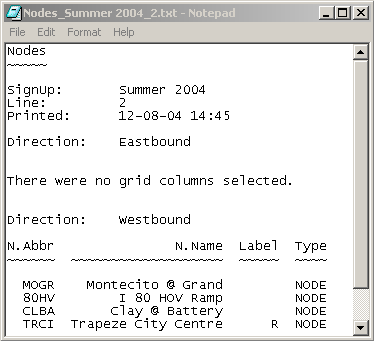
A preview of the printout appears in a text editor format, which allows
you to add, delete, or rearrange the data. The data of the first grid is not
shown in the preview.
Optional: If you select the Use Excel check box, Excel® is launched and the selected data appears on a spreadsheet.
Save the file or send it to the printer of your choice.