
Printing in FX
The Print function enables you to print information from various screens in FX.
-
Do one of the following:
- Open the screen you want to print, for example, Trip
Building screen, and click the Print button:
 .
. - Go to .
The Select Grid Columns dialog box appears with the direction of the nodes or pattern on the title bar. All items on the list are selected by default. The following graphic shows an example of selected options in the Trip Building screen, Select Grid Columns:Northbound. The options shown in the dialog box depends on the grid columns in the screen.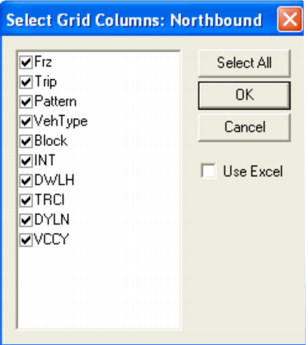 Note: The Select Grid Columns dialog box opens for all printable screens and displays screen specific data.
 - Open the screen you want to print, for example, Trip
Building screen, and click the Print button: