Place text in quotation marks for exact match search results.
Setting Node Breaks
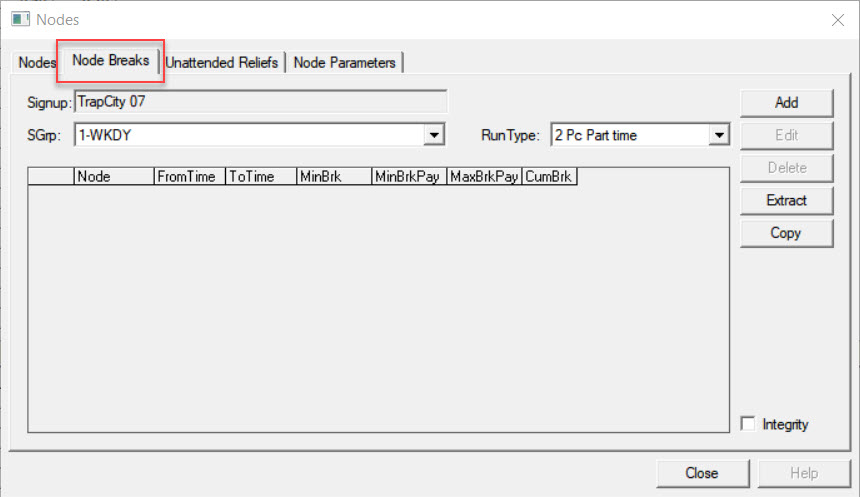
The Node Breaks tab is used only if your site also has the
Blockbuster module.
On the Node Breaks tab, create driver breaks where the duration of
the break is node dependent. For example, you can say that at a certain node from 10:00 to
14:00, there is a minimum break of 15 minutes and a maximum break of 30 minutes.
The values that you set on this tab for the various breaks in a specific node overwrite
the global values that you set on the Parameters tab in BlockBuster.
In the SGrp list, select a service group.
In the Run Type list, choose a run type.
Note: The sign-up period you set in the context is automatically shown in the
Signup field.
Click Add.
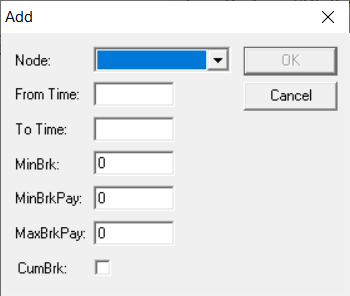
The Add dialog box appears.
Select the node for which you want to assign breaks. The node on the highlighted row in
the Node Breaks grid is shown on the Node
field by default.
In the From Time and To Time fields, type
the time period for which the breaks apply.
Optional: In the MinBrk, MinBrkPay, and
MaxBrkPay fields, type the values as appropriate for your transit
site.
(If Applicable) Select the CumBrk (Cumulative Break) check box.
The CumBrk field of the node in the Nodes Break grid displays
Yes.
Click OK.
Optional: To view records with data inconsistencies, click the Integrity
check box.