Place text in quotation marks for exact match search results.
Adding or Removing Stops From Stop Patterns
You can add or remove stops on stop patterns as required.
Open the Stop Patterns tab in the
Route Definition screen.
On the Stop Patterns grid, select the Stop
pattern you want.
Click Route Definition > Edit or click Edit:
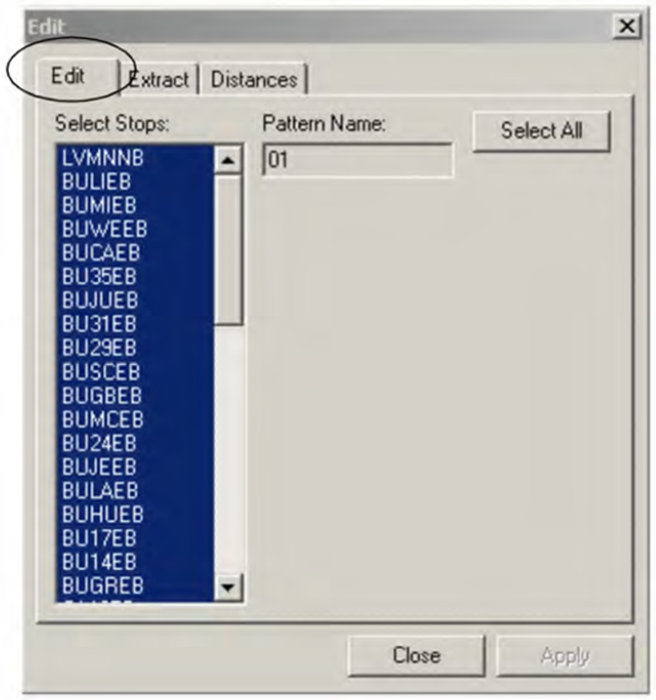
The Edit dialog box appears.
The nodes and stops associated with the selected stop pattern appear in the
Select Stops frame while the pattern name appears in the
Pattern Name field.
To add stops to the stop pattern, choose from the stops that are not highlighted in the
Select Stops frame.
Alternatively, to select all the stops, click Select
All.
Note: When adding stops, make sure that the stops are in correct
sequence, otherwise, the system provides negative values when you try to determine stop
distances.
To remove stops from the stop pattern, choose from the stops that are highlighted in
the Select Stops frame.