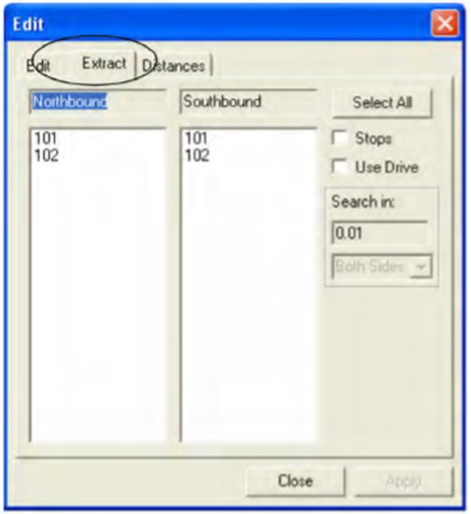
The Extract function on the Stop Patterns
tab enables you to extract node patterns to create the associated stop patterns.
After extracting a node
pattern, you can then create the associated stop pattern.
-
With the Stop Patterns tab displayed, click or click Edit:

The Edit dialog box appears.
-
Select the Extract tab.
-
From the list of patterns under each Direction frame, select the
patterns from which you want to extract stop patterns.
- Optional:
To select all, click Select All.
-
To include all the stops in the selected patterns, select the
Stops check box.
- Optional:
Select the Use Drive check box. The fields in the
Search in frame are activated. Type a value in the
Search in field. From the drop-down list, select Both
Sides (for both sides of the route) or select a specific side of the route.
The Drive feature ensures that the stop patterns are more accurate
especially for routes that split.
-
Click Apply.
-
Click Close.
Note: Always calculate distances after extracting patterns regardless of how any update
property has been set.