Place text in quotation marks for exact match search results.
Adding Travel Times
Adding a travel to the Travels grid is similar to adding a
deadhead time to the Deadheads grid.
The By Node and By Time options and
2 way check box are defined in the same manner as those on the
Add tab of the Deadheads Edit dialog box.
Complete the information on the location and times of the operator travel but instead of
typing a Dhd (Deadhead) time, type the Paid
and Actual times of the travel.
Note: In a multi-agency
environment, you can add travels from a node to or from a garage of another agency.
With the Travels tab displayed, click the
Edit button:
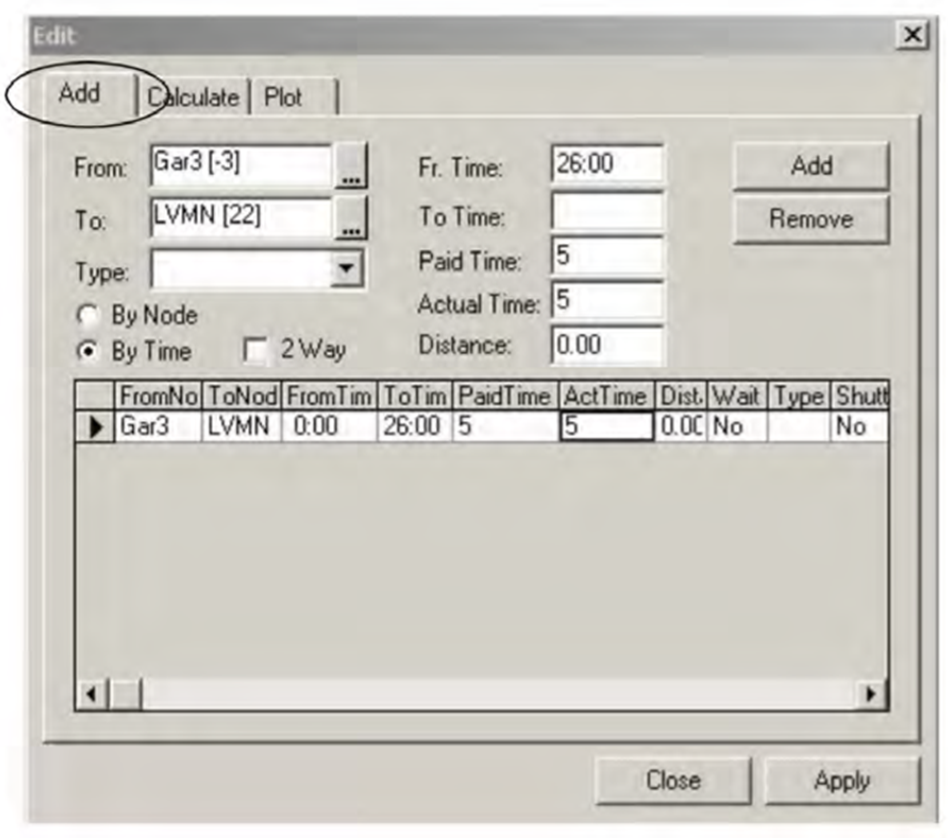
The Edit dialog box appears.
In the From field, type the name of the relief point or garage
from which the operator starts to travel.
In the To field, type the name of the relief point or garage
where the operator ends his or her travel.
In the Type list, select the applicable type of travel.
To apply one time interval to the travel time, click the By
Timeoption.
Optional: To apply other time intervals to the travel time, leave the By
Node option selected (It is selected by default).
If the travel time between the From and To locations is the same in both directions,
click the 2 Way check box.
In the Fr Time and To Time fields, type
the applicable times.
Optional: If your operators are paid for travel time, type the paid travel time in the
Paid Time field.
In the Actual Time field, type the amount of time the operator
actually travels.
If you do not type a value in the Paid Time and
Actual Time fields, the default value of zero (0) remains.
Optional: In the Distance field, type the appropriate value if
known.
Click Add.
Note: A message appears if the travel already exists and has a timespan that overlaps
with another travel. Click Yes if you wish to continue.
The new travel appears in the lower section of the dialog box.
Click Apply.
Perform the following additional steps as necessary:
To remove a travel record, select the travel and click
Remove.
To show the Comments column in the
Travels grid, click Runcutting > Comments. The Comments dialog box appears.
You can add
comments to travels. Adding comments in the Travels grid is
similar to adding comments in the Trips grid.
Click Close.
Note: If you click Close without applying your information, a
message prompts you to click Yes to save the data, click
No to proceed with closing the dialog box, or click
Cancel to keep it open.

 The Edit dialog box appears.