Place text in quotation marks for exact match search results.
Blocking Trips Automatically
The automatic approach, links or hooks trips either by finding the most cost efficient
combination of trips or finding the trips that follow each other in a consecutive
manner.
The automatic approach is particularly
useful when you need to comply with many transit site policies and union
agreement requirements and only have limited resources. It helps you to explore
possible trip combinations that enable you to maintain a satisfactory level of
service.
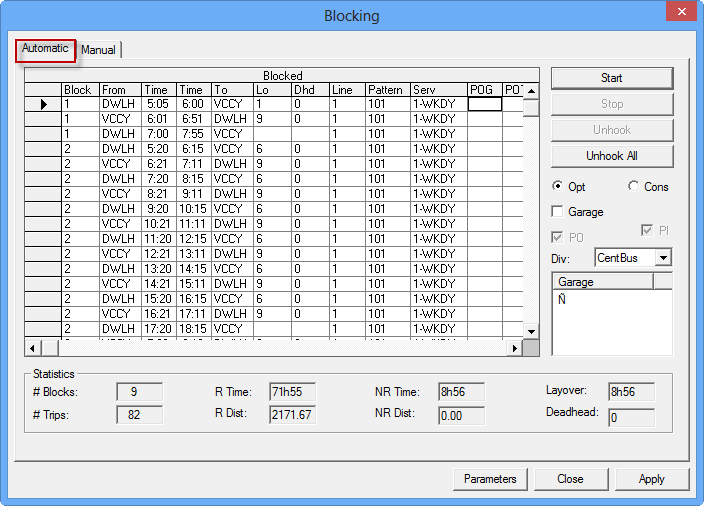
Click Blocking > Blocking.
The Blocking dialog box appears.
Click Parameters to set the parameters for the blocks to be
built. Otherwise, the parameters set as the default are used.
Depending on how you want the trips linked, select
one of the following options:
Opt: If selected, the system searches for the most cost
efficient combination of trips based on the parameters you set.
Con: If selected, the system searches for the next available
trip based on your layover and deadhead parameters.
Optional: To include garage deadheads in the costing solution, select the
Garage check box.
The applied block solution assigns the garages if deadheads are
available.
Select either the PO (Pull-out) or PI
(Pull-in) check box or select both check boxes. Selecting both is recommended.
Click Start.
The blocked trips appear on the Blocked grid.
To determine if the created blocks meet your requirements, review the blocks and the
statistics in the Statistics frame.
Optional: To remove a trip from the Blocked grid, select it and click
Unhook.
To undo all the blocks, click Unhook All.
A message box appears asking if you really want to unhook all the
blocks.
Click Yes.
Optional: If the blocks created do not meet your requirements, change the parameters and repeat
the process.
Click Parameters.
The Blocking Parameters dialog box is
displayed.
Make the changes you want and click OK. (You do not have to
unhook the blocks you created.)
If the created blocks meet your requirements, click
Apply.
The blocks appear in the Blocked grid on the
Blocking tab.